infinitodo user manual
infinitodo is a task list where every item can have its own sub-items, as deep as you need. This manual walks through everything it does, from your first item to shared group lists, due dates and playbooks.
Getting started
Sign up with an email address and a password of at least 8 characters. You can start using your list right away. We also email you a link to confirm your address: until you click it (within 7 days; a banner at the top can send it again), inviting people by email, redeeming codes and emailed notifications wait.
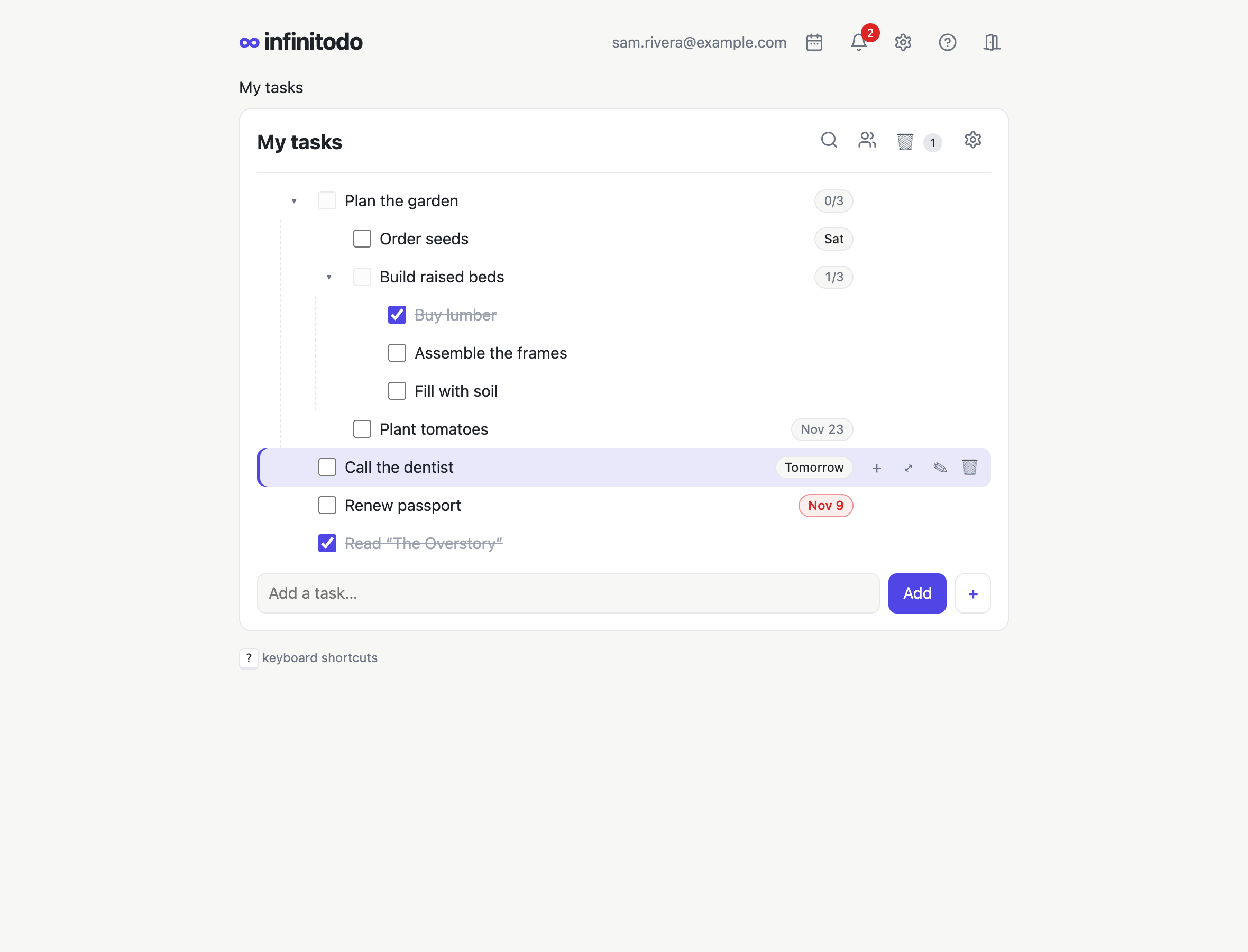
Across the top of every page are:
- Tags (the # sign): everything you've tagged, across your lists. See Tags.
- Upcoming (the calendar): everything that's due, across your lists. See Upcoming.
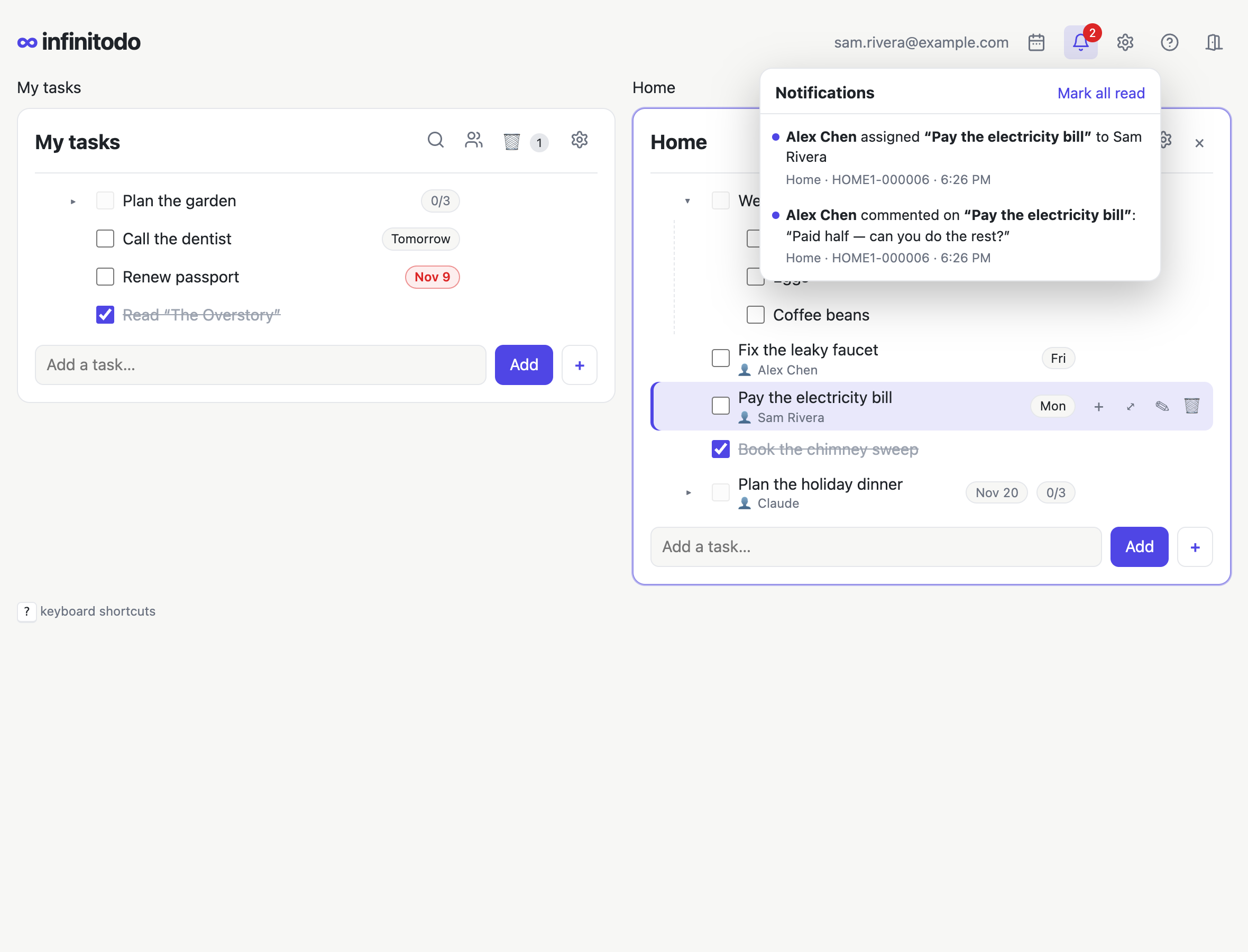
- Notifications (the bell): changes others make to items you follow or are assigned, and due-date reminders. A red number shows how many are unread.
- Your settings (the gear, or S): your account, groups and playbooks.
- Help (the question mark): this manual.
- Log out (the door).
Tip: infinitodo is built to be used from the keyboard. Press ? at any time for the list of shortcuts, or see Keyboard shortcuts.
Your list
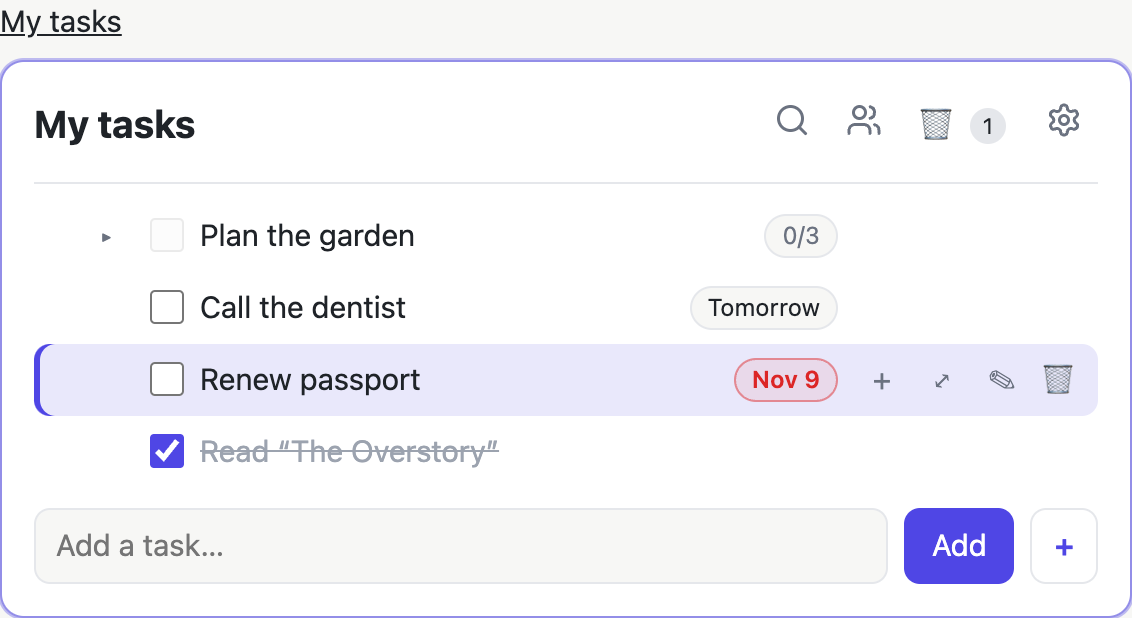
My tasks is your own list: only you can see it. Each item can have sub-items, which can have their own, without limit.
Adding items
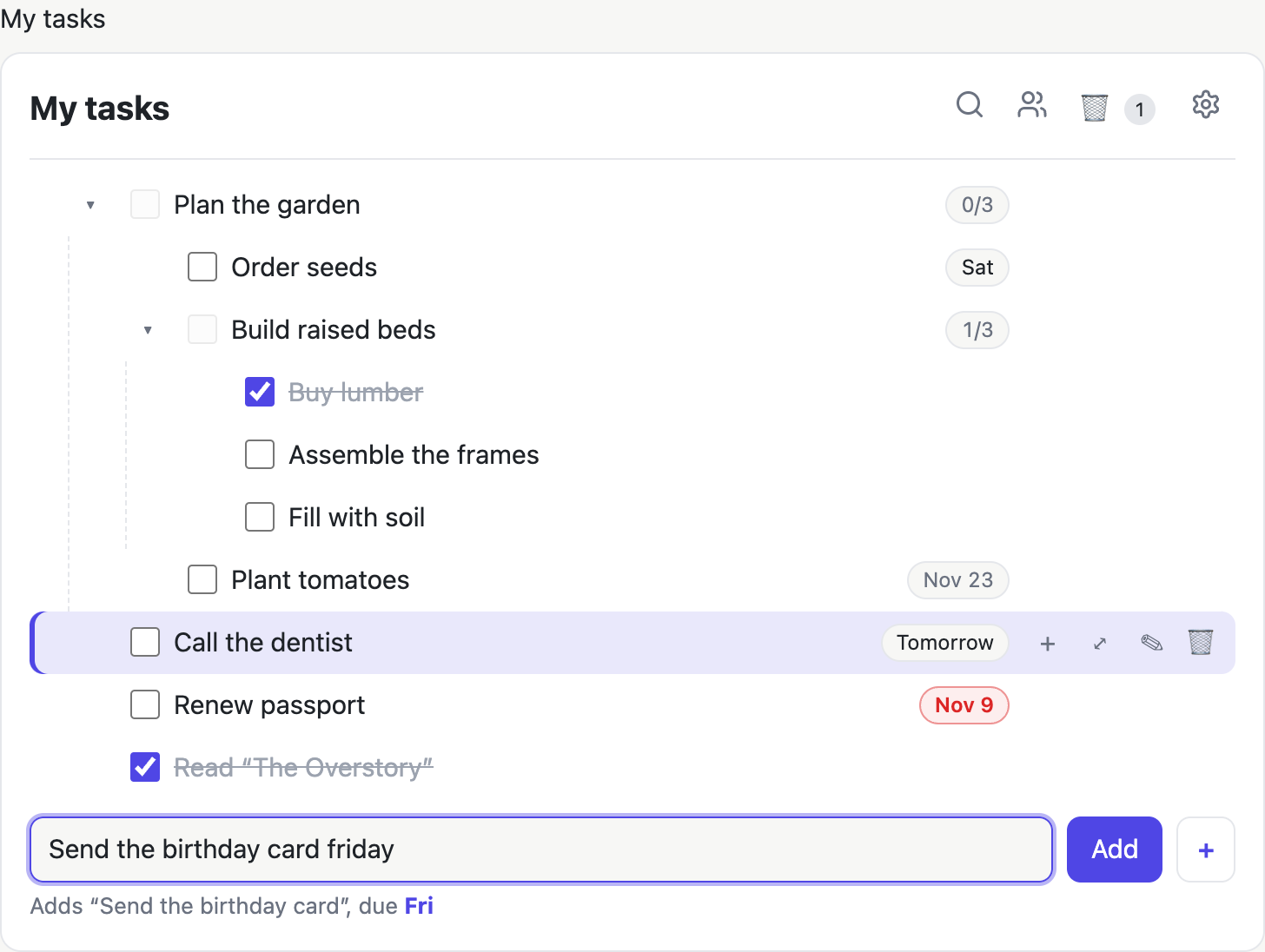
- Type in Add a task… at the bottom of the list and press Enter (or Add). With the list in front of you, Enter jumps to that box.
- To add a sub-item, press the + on an item's row (or select it and press I): a box opens right under it.
- To add an item just below another, select it and press i. Add several in a row and they stay in the order you typed them.
- You can type a due date at the end, like “Call the dentist tomorrow”. See Typing a date.
- The + button next to Add inserts a playbook: a saved set of items.
Checking things off
Click an item's checkbox, or select it and press space (on an item without sub-items). Checked-off items are crossed out. What happens to them next is up to you: they can stay, fade away, move to the archive or go to the trash. See List settings.
An item with sub-items can only be checked off once all of them are done, so nothing gets forgotten. The badge next to it (like 3/7) shows how many are. If you add a new sub-item to something that's done, or uncheck one of its sub-items, it opens again. Or have a list check items off by themselves once all their sub-items are: Sub-items in its settings.
Opening and focusing
- Click the ▸ next to an item, or select it and press space, to show or hide its sub-items.
- E opens every item in the list, all the way down, and C closes them all (also Expand all / Collapse all when you right-click an empty part of the list). Focused on an item, they open or close just what's under it.
- Which items you have open is remembered, on your account: it's the same after a reload, and on your other devices. In a group list, everyone has their own.
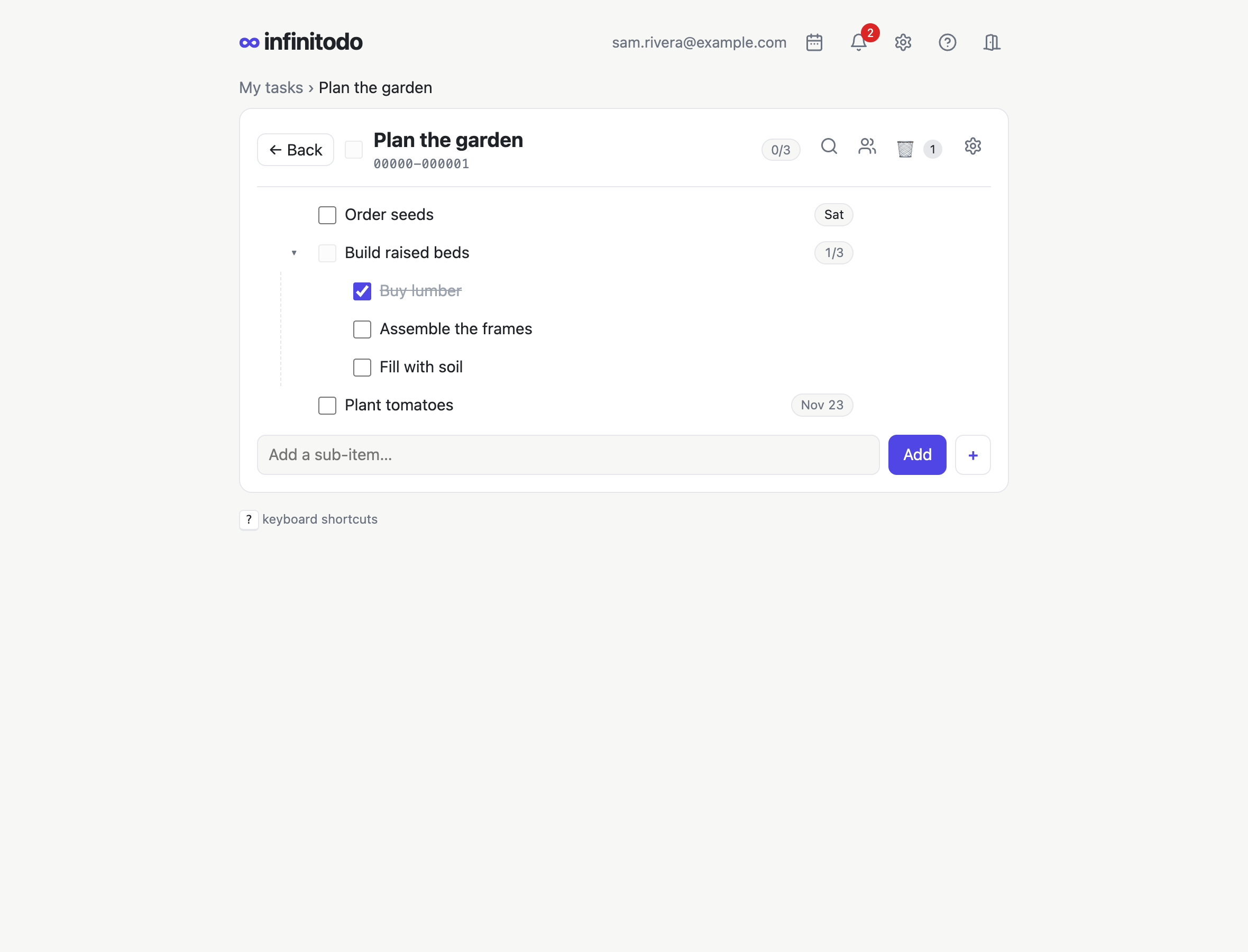
- Press ⤢ on an item (or f) to focus on it: it fills the list, with its sub-items below. The path at the top (“My tasks › Plan the garden”) and ← Back (or b) take you back up.
- Move the selection with j and k, or by clicking.
- To rename an item, double-click its title, or open its info (double-click the row beside the title, or ✎) and change the title there.
Moving, copying, pasting
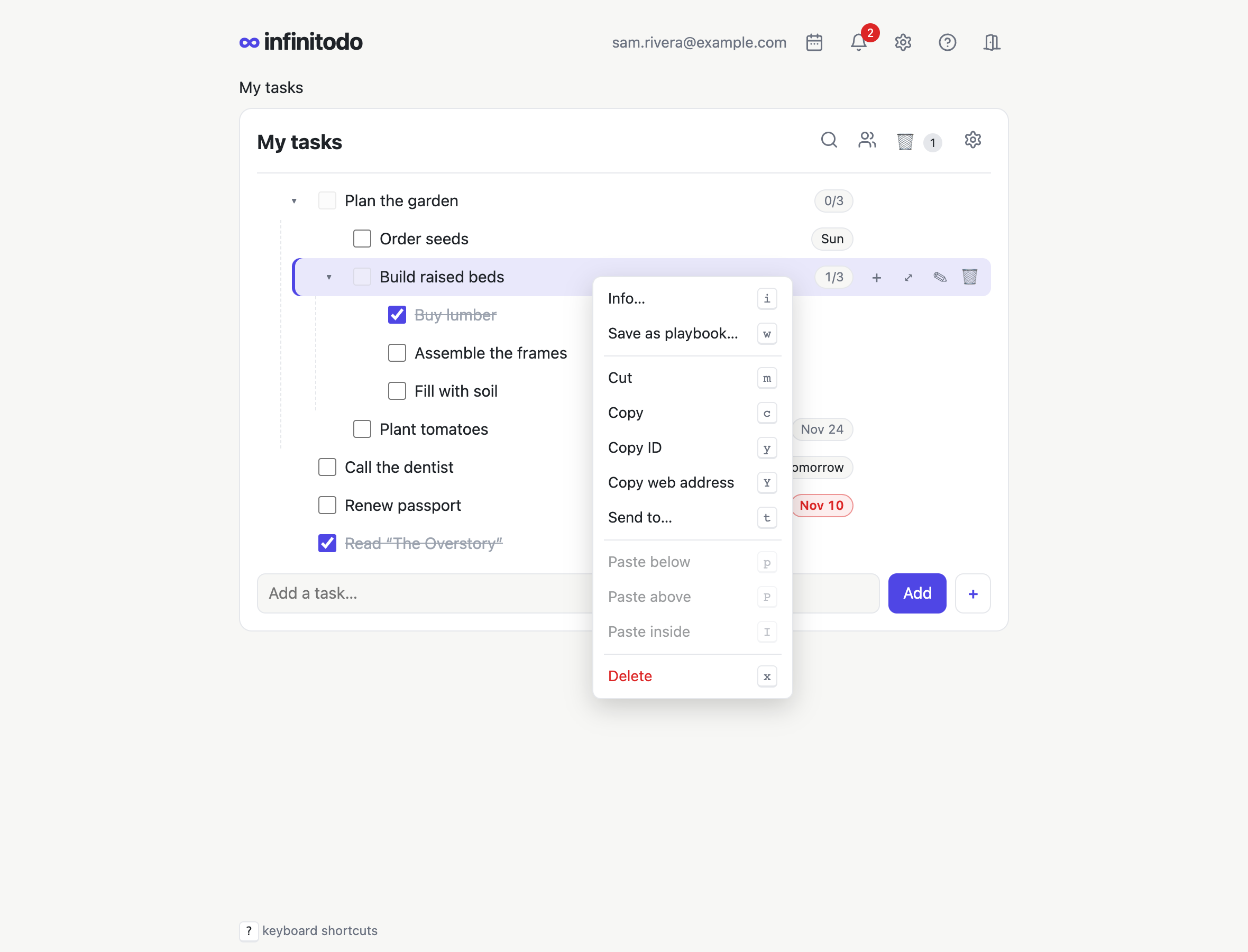
Drag an item by the ⠿ handle on its left to move it, with everything under it: between other items, or onto an item to put it inside. Or use cut, copy and paste, from the keyboard or the right-click menu:
- > indents the selected item: it becomes the last sub-item of the item above it. < outdents it: out of its parent, to just below it. With several items selected, they all move, a level per press; sub-items selected along with their parent stay inside it. So pressing < again and again brings a whole selection, a level at a time, up to the top.
- m cuts the selected item, c copies it.
- To move, copy or delete several at once, select them first: shift-click selects everything from the current item to the one you click, ⌘/Ctrl-click adds an item (or takes it out), and J / K select down / up from the keyboard. Then m, c or x act on all of them, and pasting puts them in their order. If an item and one of its sub-items are both selected, the sub-item just comes along. esc lets go of the selection.
- p pastes below the selected item, P above it, and I inside it. (With nothing cut or copied, I adds a new sub-item instead.) A cut item is pasted once; a copy stays ready until you press esc, which also cancels a cut.
- You can paste into the other list on the screen, e.g. copy something from a group's list into yours.
- Or send it to any of your lists, open or not: t (Send to… in the right-click menu), pick the list (type to find it, ↑ ↓ and enter, or click), and choose Move or Copy at the top. It goes at the end of that list. With several items selected, they all go, in order.
The trash and the archive
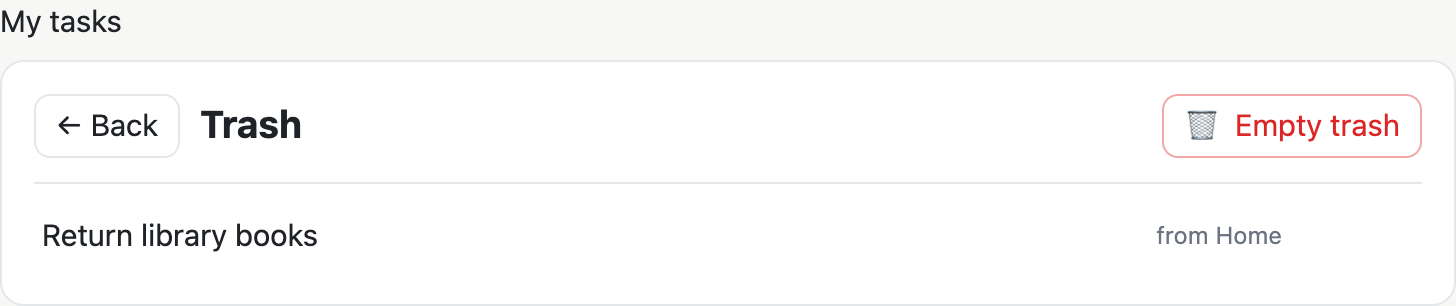
Deleting an item (the 🗑 on its row, or x) moves it and everything under it to the trash. The trash icon at the top of the list opens it, with a count of what's inside. There you can restore an item to where it was (r), delete it forever (x), or empty the whole trash.
The archive, the 🗄 next to the trash, is for things you're done with but want to keep. Archive an item, with everything under it, from its right-click menu (Archive) or with e, done or not; select several first to archive them all. A list can also archive items as they're checked off (see List settings). From the archive you can put them back in the list, or move them to the trash.
In the trash or the archive, ⓘ on an item (or d) shows its info: its notes, comments, due date and so on. It's read-only there; restore the item to change it.
Undo
Changed something by mistake? After each change, the bottom of the page says what you did, like Deleted “Groceries”, with Undo. Or press z (or Ctrl/⌘+Z) to undo your last change, and again for the one before, and so on.
Undo works for moving and pasting items, deleting them, checking them off (with whatever the list then did: archiving them, or checking off what they're under), renaming them, due dates, repeats, assigning, and sending items to another list. Several selected items changed at once come back at once. An item you added is deleted again.
In a group list, you can only undo a change while nobody else has changed those items since, so an undo never wipes out someone's work. Emptying the trash or deleting forever can't be undone. Notes and comments aren't part of it: while typing them, Ctrl/⌘+Z undoes your typing, as usual.
Item IDs
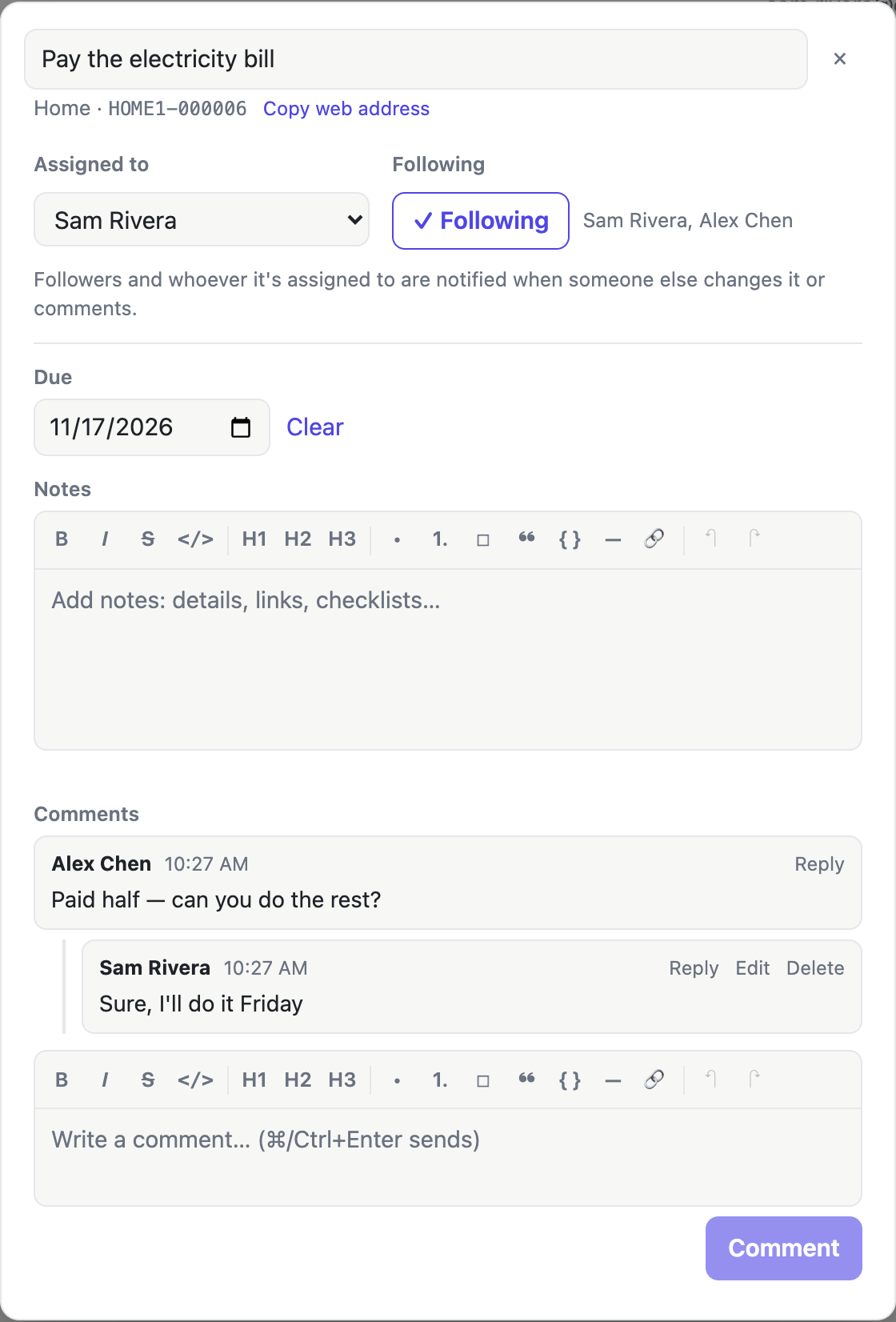
Every item has an ID, like HOME1-000006: its list's
group ID, then its number in that list. Items in your own list
start with 00000. You'll see an item's ID when you
focus on it and in its info. Press y to copy it (or
click it in the item's info), and
type one into Search (g) or
Open (o) to jump straight to that item,
e.g. when someone mentions it.
To send someone straight to an item, copy its web address: Y, Copy web address in its right-click menu, or the button next to its ID in its info. Opening the address shows the item, with its info open (and, for a group item, the group's list open beside yours), for anyone who can see it.
Search
Search finds items by what they say: every word you type has to appear in the item's title or its notes, in any case. Search with the magnifying glass at the top of a list, or from the keyboard:
- / searches the list you're in (your own, or the group list on the right), as in Vim.
- g searches everywhere: your list and all your groups' lists. It works on the Upcoming page too.
You can also switch between This list and Everywhere at the top of the search box. Results show where each item is: the items it's under, and its list's name when you're searching everywhere. When only the notes match, you see the matching bit of them.
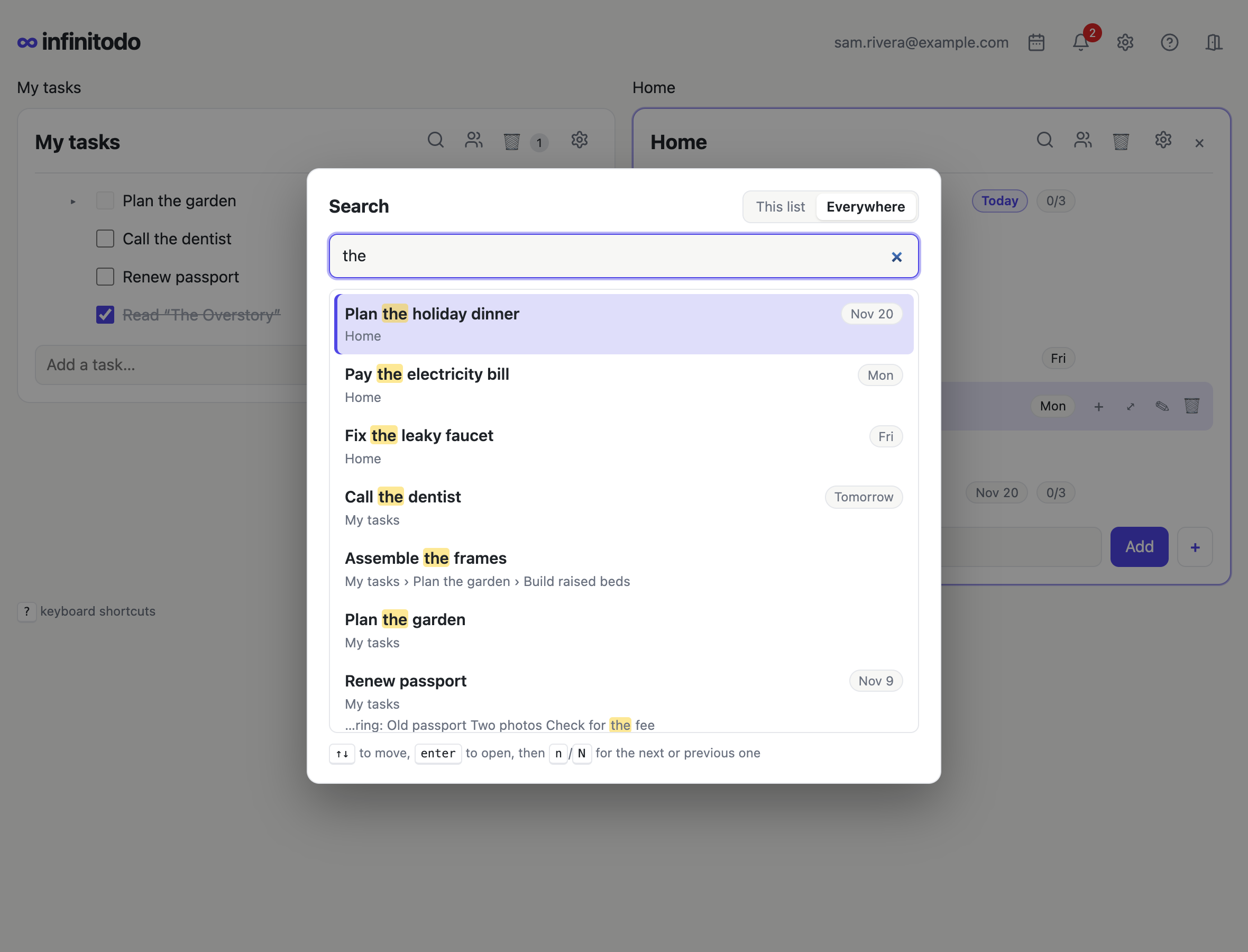
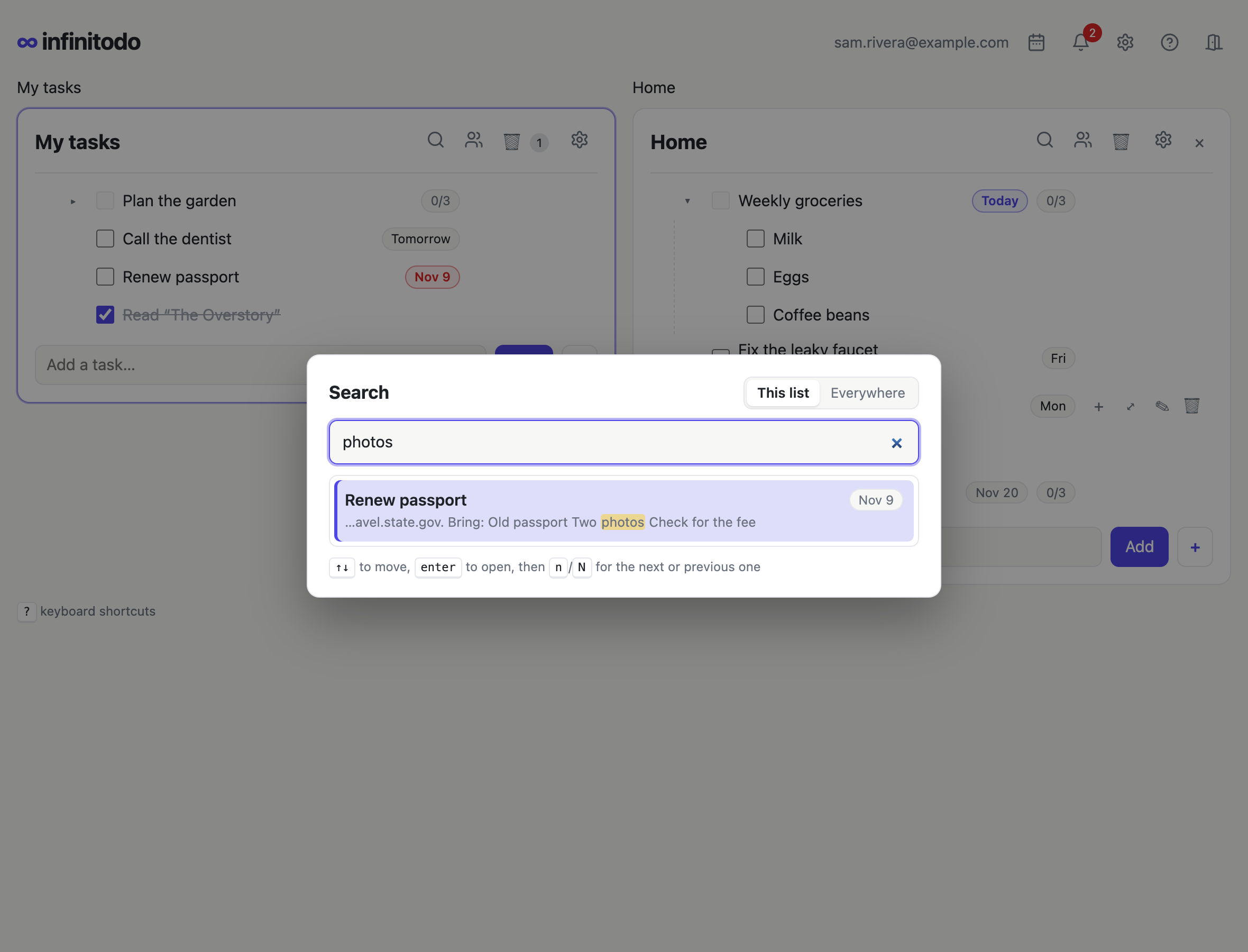
Use ↑ and ↓ to choose a result and enter to open it, or click it. The item is selected in its list, with the items above it opened, and a group's list opens on the right if it isn't open already. Results in the trash or the archive are marked, and come last.
Once you've opened a result, n goes to the next one and N to the previous one, without searching again. The bottom of the page shows which result you're on. esc puts the search away.
HOME1-000006.
An item's info: notes and more
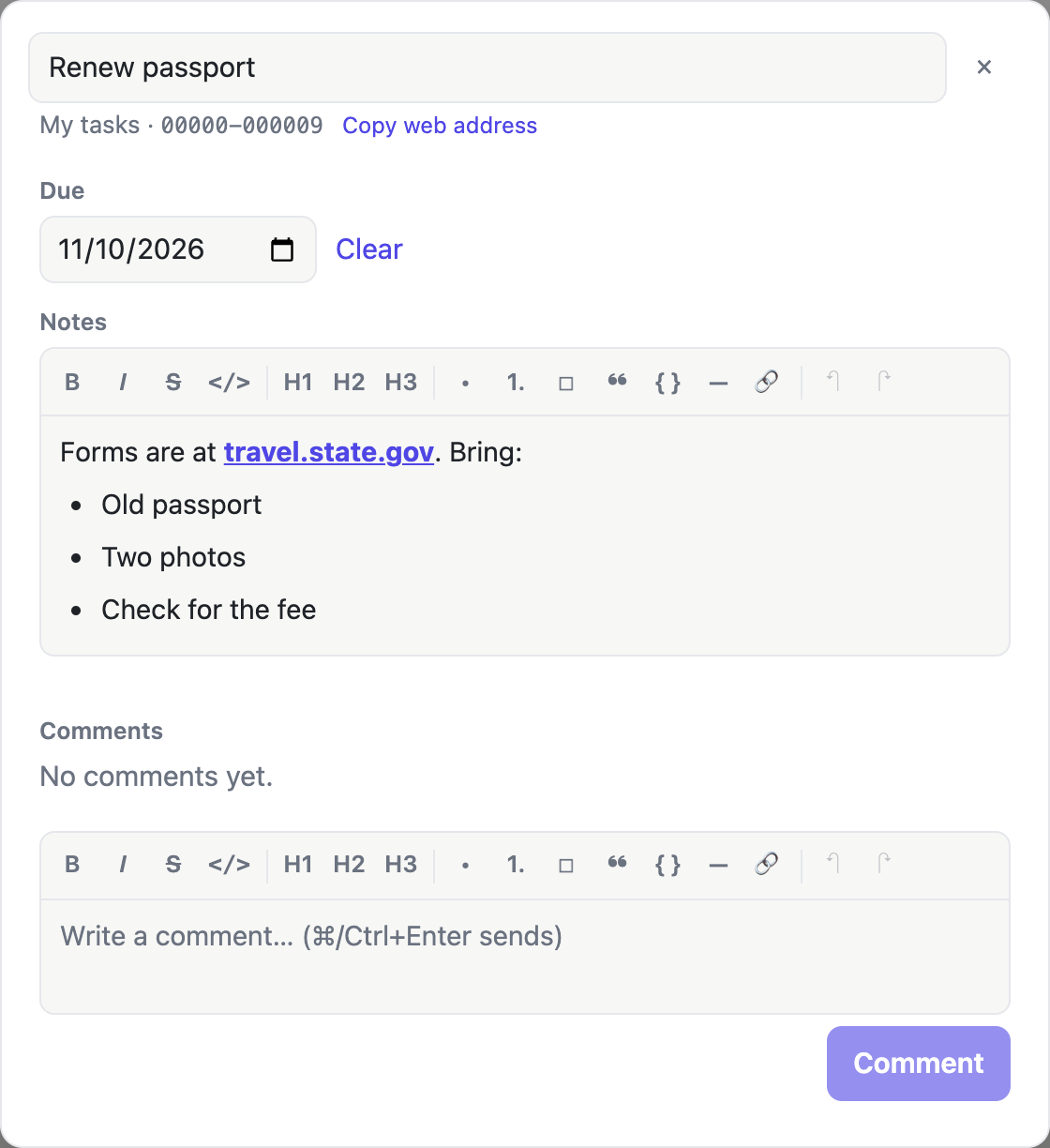
Select an item and press d (for details; or double-click its row anywhere but the title, ✎ on its row, or Info… in its menu) to open its info:
- Title: click it to rename the item.
- Due: pick a date, or Clear it.
- Notes: details, links, checklists. Notes are rich text, with a toolbar for bold, lists, checklists, headings, code, quotes and links, and they're saved as you close the dialog.
- Comments: a conversation about the item. Reply on a comment to answer it: replies go under the comment that started the thread, and whoever you reply to is notified. You can edit or delete your own (a deleted comment with replies leaves a placeholder, so the replies still make sense). In a group's list, type
@to mention someone: pick them from the names that come up (↑ ↓ and Enter), and they're notified even if they don't follow the item. - Activity: Show activity, under the comments, lists what's been done to the item (added, renamed, moved, checked off, due dates, who it's assigned to, sub-items added), who did it and when, newest first.
- In a group's list, also who it's assigned to and who's following it (see Assigning and following).
Due dates
Any item can have a due date. It shows on the right of the item as:
- Nov 8 red, once it's overdue (or Yesterday),
- Today highlighted, on the day,
- Tomorrow, then the weekday (Fri) for the coming week,
- Nov 22 further out, with the year if it isn't this year.
Set or change a due date in the item's info, or type it when you add the item. Dates are days, in your own time zone.
A due date can also have a time of day, like Today 3:00 PM: set it next to the date in the item's info, or type it (below). Leave the time empty for the whole day. Once its time has passed, an item due today turns red. Times are your own clock's: 3:00 PM is 3:00 PM wherever you are, and in a group each person sees it in their own time zone.
Typing a date
End a new item's title with when it's due, and infinitodo takes it off the title and sets the date. Before you press Enter, the line under the box says what it understood.
| Type | Due |
|---|---|
today, tonight | today |
tomorrow, tmrw | tomorrow |
fri, friday, mon… | the next one (today, if it's that day) |
next week | a week from today |
in 3 days, in 2 weeks | that long from today |
nov 14, 14 nov, 11/14 | that day this year (or next, if it's passed) |
11/14/2027, 2027-11-14 | that exact day |
You can put due, by or on
before it: “Rent due fri” adds “Rent”, due Friday. Only the end
of the title counts (tags like #home after it are
fine), and a title is never left empty, so an item called just
“tomorrow” stays “tomorrow”.
Add a time before or after the date:
3pm, 3:30 pm, 15:00,
noon, optionally after at. “Call the
bank tomorrow at 3pm” is due tomorrow at 3:00 PM; “Dentist 9:15am
fri” on Friday at 9:15 AM. A time alone means the next one:
“Standup 9:30” is today at 9:30, or tomorrow if that's passed.
(Plain numbers aren't times: “Read chapter 3” stays as it is.)
Upcoming
The calendar at the top (or u) shows everything not done that has a due date, in your list and all your groups' lists: overdue, today, tomorrow, the next 7 days, and later. Check things off right there, or click one to open it in its list.
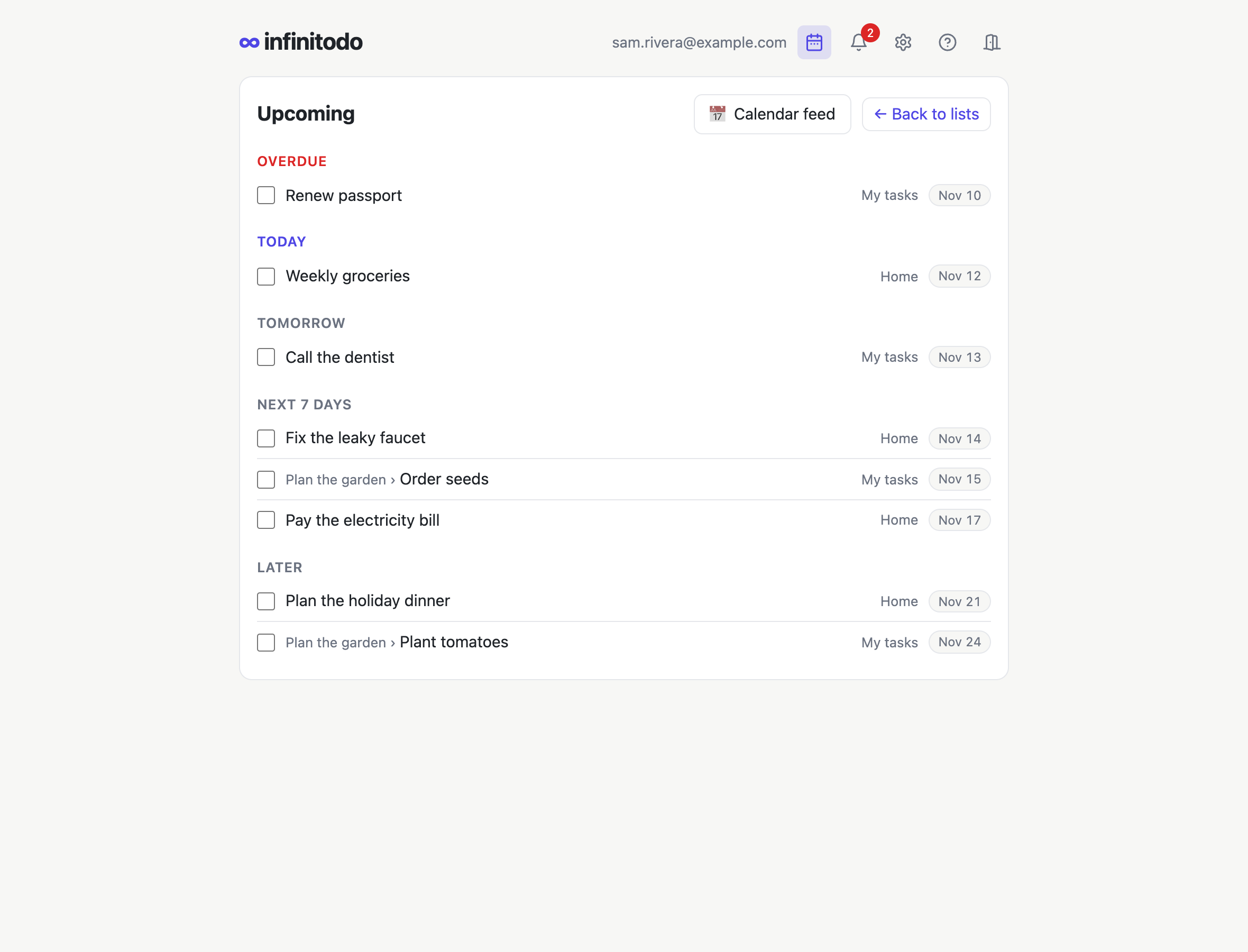
Want them in your calendar? 📅 Calendar feed at the top of Upcoming gives you an address to subscribe to in your calendar app (Google Calendar, Apple Calendar, Outlook…). Your due items show up there as all-day events (items due at a time: at that time, with an alert), with a link back to each one, and the calendar keeps itself up to date (how often depends on the app; Google's can take a few hours). Anyone with the address can see your due items, so keep it to yourself; Get a new address stops the old one working.
Reminders
Each morning (from 8:00 in your time zone), the bell reminds you of items due that day: your own, and items in group lists that are assigned to you or that you follow. Items due at a time also get a reminder at that time. Your time zone is taken from your browser when you sign in.
Want a list in due-date order? Choose By due date under Order in its settings.
Repeating items
An item can repeat: “Water the plants” every week, “Pay rent” on the 5th of each month. Checking off a repeating item is like checking off any other: it's hidden, archived or deleted, as the list's settings say. Each time, a fresh one is added to the list, with its notes and sub-items (all unchecked), at 4:00 in the morning on the day it starts:
- repeating by the day: the day it's due (“Pick mom up every day at 5pm” is there each morning);
- by the week: that week's Monday;
- by the month: the 1st;
- by the year: January 1st.
One you haven't checked off stays when the next one comes, so nothing is lost. Change something in one (its title, notes or sub-items) and check it off: the next ones are made from it. Upcoming shows the next one, greyed, before it's added. Repeating items show Mon 🔁, and Stop repeating in an item's info stops them all.
Type how it repeats at the end of a new item (before a time or tags, if any), or set it under Repeats in its info:
| Type | Repeats |
|---|---|
every day, daily, every 3 days | that often |
every week, weekly, every other week | that often, on the same weekday |
every monday, every mon and thu, every weekday | on those days |
every 2 weeks on tuesday, every other friday | on that day, every other week |
the 1st of each month, every month on the 15th, the last day of the month | on that day of the month (the last day, in shorter months) |
every month, every year, yearly | on the same date |
3 days after I finish it, a month after it's done | that long after you check it off, whenever that is (the next one is added right then) |
Starting: add when it starts, after how it repeats.
“Pay rent the 5th of each month starting on the
25th” is added on the 25th, ahead of each 5th. “Team meeting
every Thursday at 2pm starting next week” is first
due next week. The item you type is there right away, due on its
first date on or after the start; after that, each one is added at
the start's place in its week, month or year. Starts read like due
dates: starting tomorrow, starting Monday,
starting next week (its Monday), starting next
month (its 1st), starting on the 1st,
starting Dec 1. Add a time to choose when in the day
it's added (otherwise 4:00 in the morning): starting at
3pm, starting Monday at 8am.
So “Standup every weekday at 9am #work” is due at 9:00 AM each weekday, and “Change the filter 3 months after I finish it” comes back three months after each time you do it. A new repeating item is first due on the next date that fits (today, if it does).
Scheduled playbooks
A playbook can be added to a list on a schedule: your weekly review every Monday, a monthly bills checklist on the 1st. Its items are added at the end of the list on each date, as if you'd inserted it then (due dates in it count from that day).
Set it up in Repeating: in your settings
(S) for your own list, or in a group list's settings
(s) for that list. Pick the playbook, type when (like
every monday), and Schedule. The
same page lists the list's repeating items and its schedules, to
stop any of them. A scheduled playbook is added as whoever
scheduled it, in their time zone; it stops if the playbook is
deleted or they leave the group.
Tags
A tag is a word starting with # in an item's title,
like Buy stamps #errands or Send the report
#work. Type it anywhere in the title; an item can have
several. Tags work across lists: the same tag in your list and
in your groups' lists brings those items together.
In a list, tags show highlighted. Click one to see everything with that tag. A due date still works before tags at the end of a new item: Call mom tomorrow #family is due tomorrow and keeps its tag.
The Tags page
Open it with the # sign at the top, or press #. It shows every item that isn't checked off and has a tag, from your list and your groups', with every tag and how many items have it. Click tags to filter by them, or type in the box:
- Tags, like
#work: items must have all of them. due:followed byoverdue,today,tomorrow,week(the next 7 days),later,anyornone.- Other words: items whose titles contain them.
So #work due:week is everything tagged #work that's
due in the next 7 days. Check items off right there, or click one
to open it in its list.
Saved filters
Use a filter often? Click Save this filter and give it a name. Saved filters show on the Tags page: click one to use it, or × to delete it. They're yours alone, even when they find items in group lists.
Groups
A group has a shared list that everyone in it can add to, edit and check off: a household's chores, a book club, a team. Your own list stays private. Anyone can be in groups for free; creating them needs Premium.
Creating and inviting
- Open your settings (S) and choose Groups.
- Under Your groups, give the group a name. Its group ID (five letters or digits, like
HOME1) starts every item ID in it; you can pick your own, but it can't be changed later. - Choose the new group in the sidebar to invite people: type an email address and Send invite, or Create invite link to send one person a link yourself (say who it's for, to tell your links apart). People with an account see the invite under Settings → Groups (and get an email); anyone else signs up through the link.
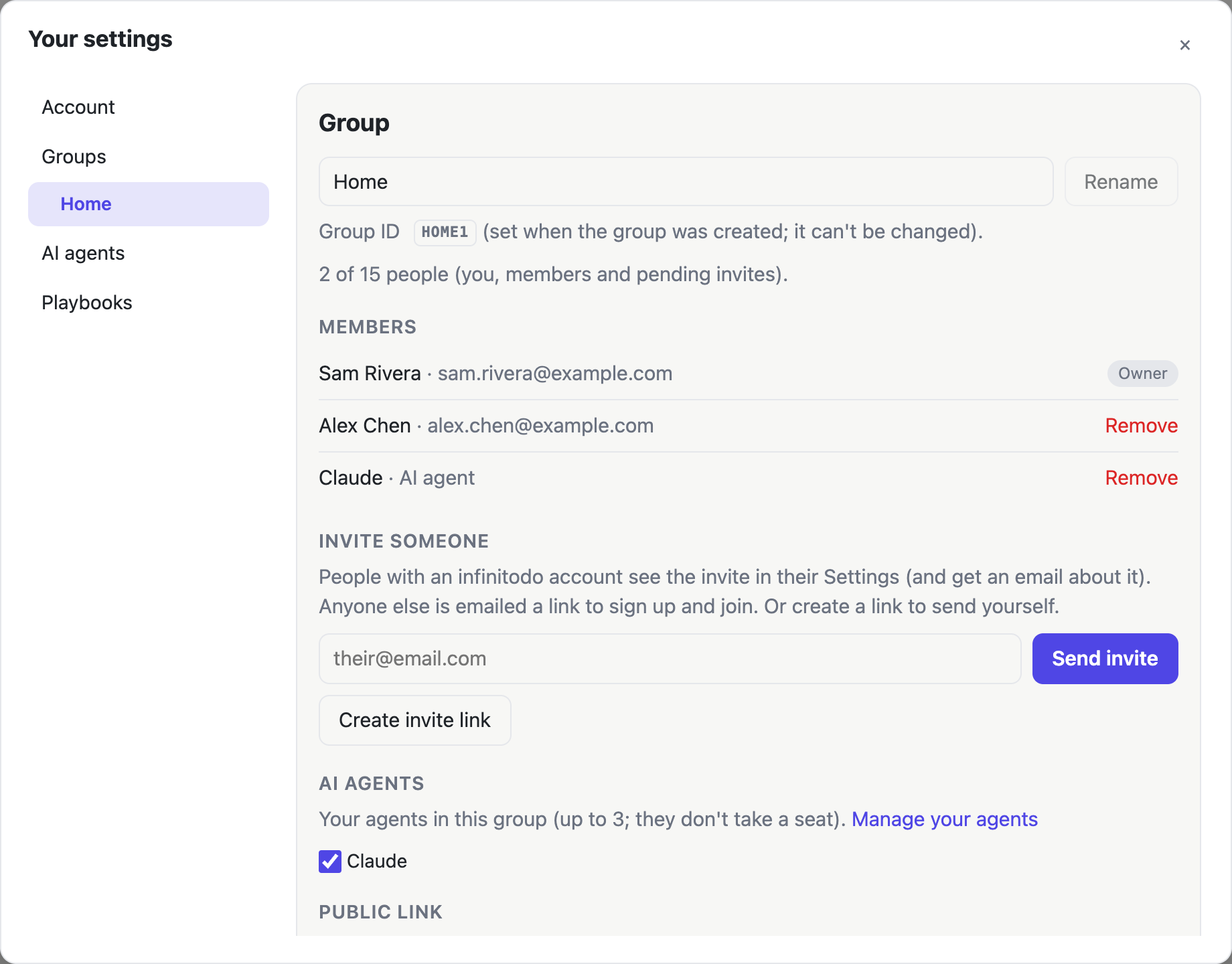
A Premium account can own as many groups as it likes, with as many people in each as it likes. Invite links work once, and expire after 7 days (emailed ones after 30).
A join link for anyone: to let people join without inviting each one (a club, a class), turn on the group's Join link. Anyone with it can join, as many people as use it, and it doesn't expire. It's off until you turn it on. New link stops the old one working, and Turn off stops it altogether. Either way, people who already joined stay in the group.
Working in a group list
Open a group's list with Open (the people icon, or o): it opens on the right, next to your own. Click either one, or press h and l, to choose which one the keyboard works in. q or × closes the group list. If you leave one open, it's open again the next time you open infinitodo (in the same browser).
One list at a time: in your settings, Account, set Layout to One column. A group's list then opens in place of yours instead of next to it. To go back to yours, choose My tasks at the top of Open (o), or press h or q, or click ×. l goes back to the group list you had open last. Cutting or copying in one list and pasting in the other still works: switch lists in between.
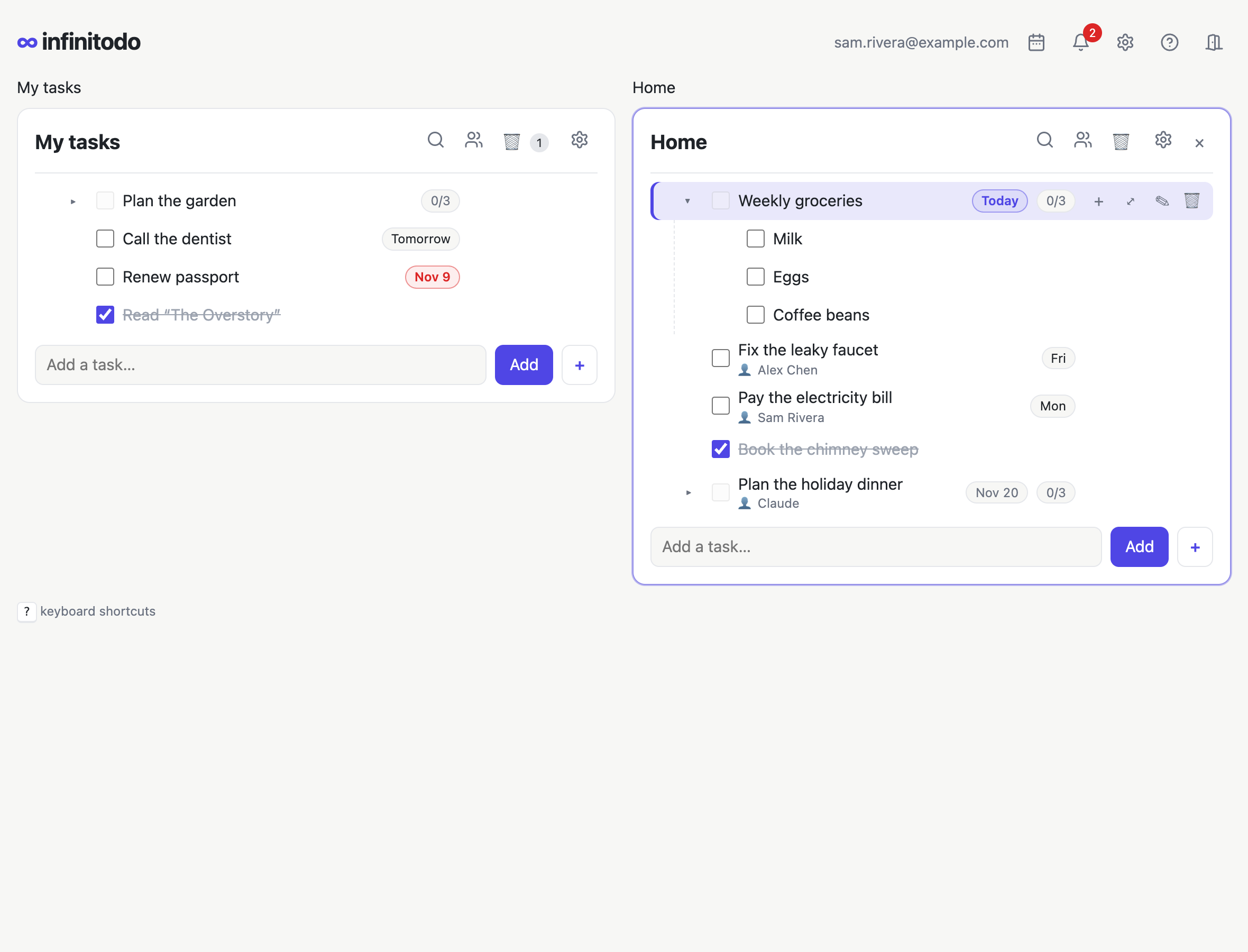
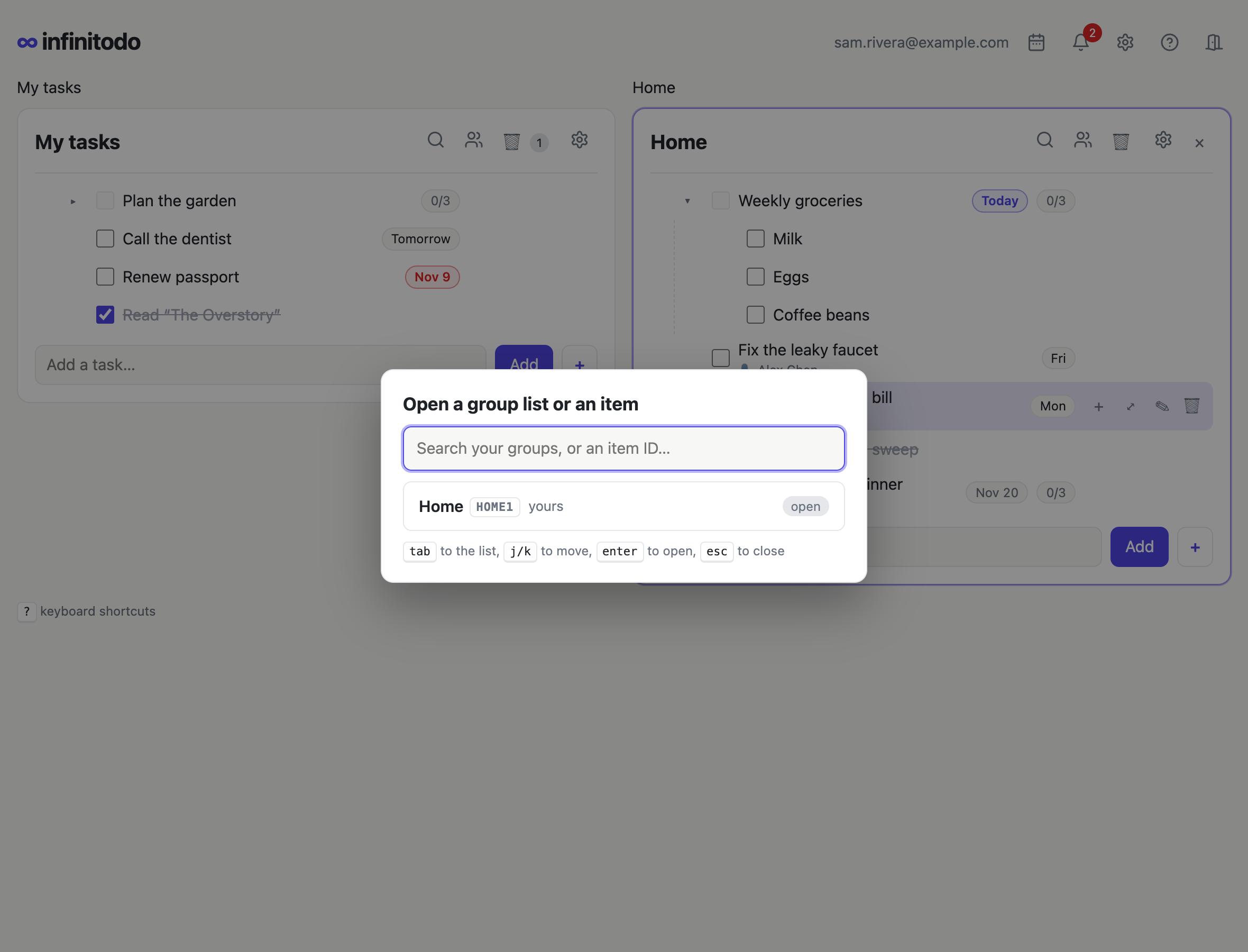
Everything in Your list works the same in a group's list. Each person chooses for themselves whether checked-off items are hidden and how the list is ordered.
If a group's owner moves to the Free plan, the group becomes read-only: everyone can still see it and copy things out of it, but nothing changes until the owner has Premium again. Nothing in it is deleted.
Assigning and following
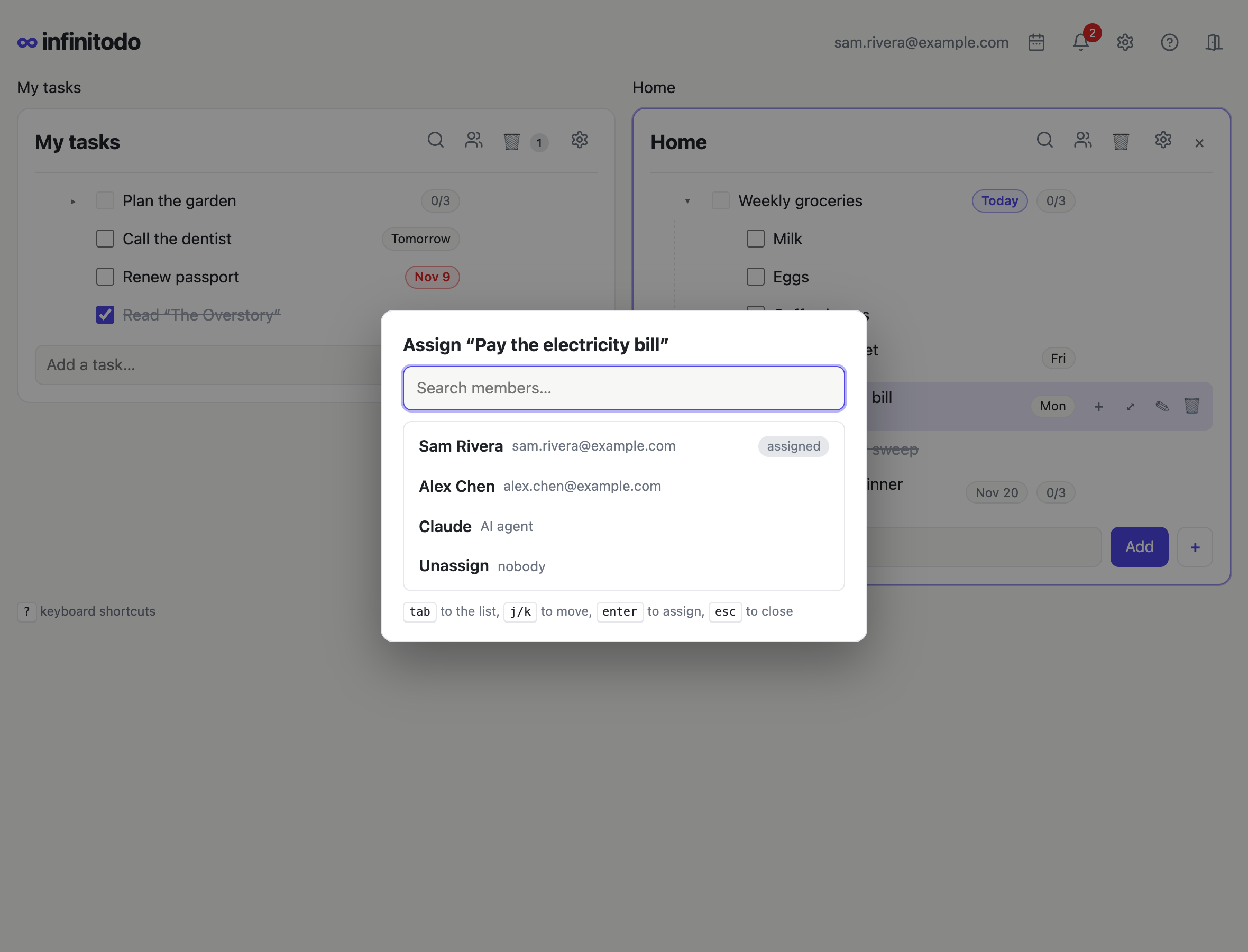
Select a group item and press a (or Assign to… in its menu) to give it to someone in the group. Their name shows under the item. If it has sub-items, tick Also assign its sub-items to give them everything under it too, however deep (or, with Unassign, to unassign it all); z takes it all back at once.
In a group item's info you can also follow it. Whoever it's assigned to and everyone following it hear about changes others make: renames, check-offs, moves, new sub-items, notes, due dates and comments. To follow every item you add to a group list, tick Follow items I add to group lists in your settings (S, Groups).
Notifications
The bell shows what's happened to items you follow or are assigned, newest first, and your due-date reminders. Click one to open the item's info, with its list behind it (a group's list opens next to yours); Mark all read clears the count. It lists all your unread ones, and recent read ones up to 10 in all; Load more at the end shows older ones.
Mirrors in your own list
Want a group item in your own list too? Select it in the group's list and press r (Mirror in my list), then paste it into your list with p. The mirror (🪞) is the group's item itself, with its sub-items, right in your list: changes made through it change the group's list, and the other way round. Deleting the mirror only removes it from your list.
Sharing a list publicly
A group's owner can share its list with anyone, no account needed: in the group's settings (or the list's, s), under Public link, tick what to show besides the items' titles (checked-off items, due dates, who they're assigned to, notes; nothing ticked shows titles only) and click Share this list. Anyone with the link sees the list as a simple read-only page, as it is when they open it. The trash and the archive are never shown.
Change the ticks any time: the same link shows the new choice. New link stops the old one working, and Stop sharing turns it off. It's a Premium feature: while the group is read-only, the link doesn't work.
AI agents, like Claude
Premium: AI agents work in group lists, and only Premium accounts can create groups, so adding an agent needs Premium. (Agents someone else added to a group you're in work there for everyone, Free or not.)
You can add an AI assistant such as Claude to the groups you own, as a member. It can read their lists, add items (with sub-items, notes and due dates), check them off, change them, comment, and be assigned items, like anyone else. What it does shows under its own name, in the list, the history and notifications, and everyone sees it right away. It can't see your own list or groups you haven't added it to. A group can have up to 3 agents.
To make one, open AI agents in your settings (S), give it a name and click Make an agent, then tick the groups it should be in. (A group's own settings page has the same ticks.) You get a token and a command to connect it: one token for all its groups. The token is only shown once, so copy it then.
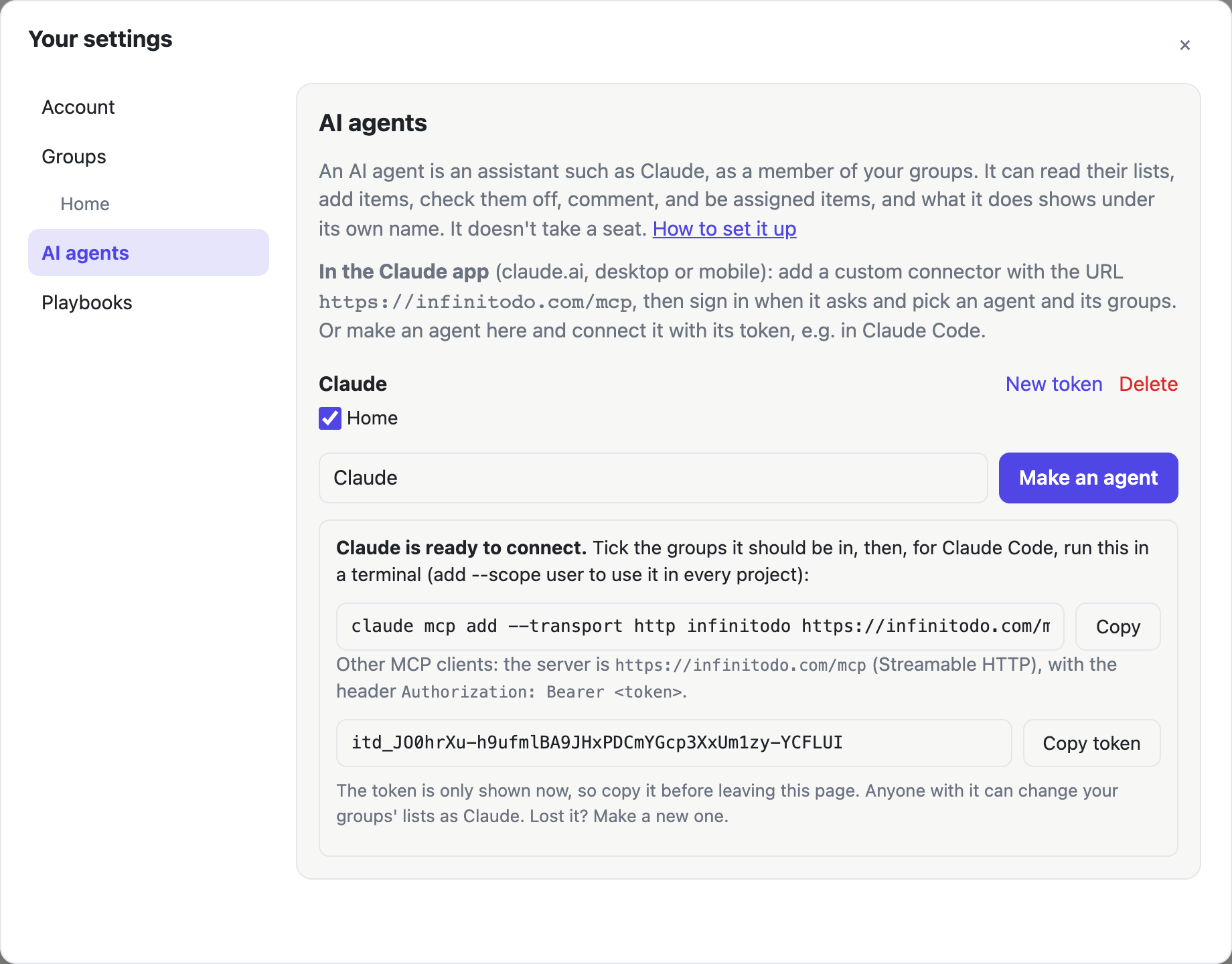
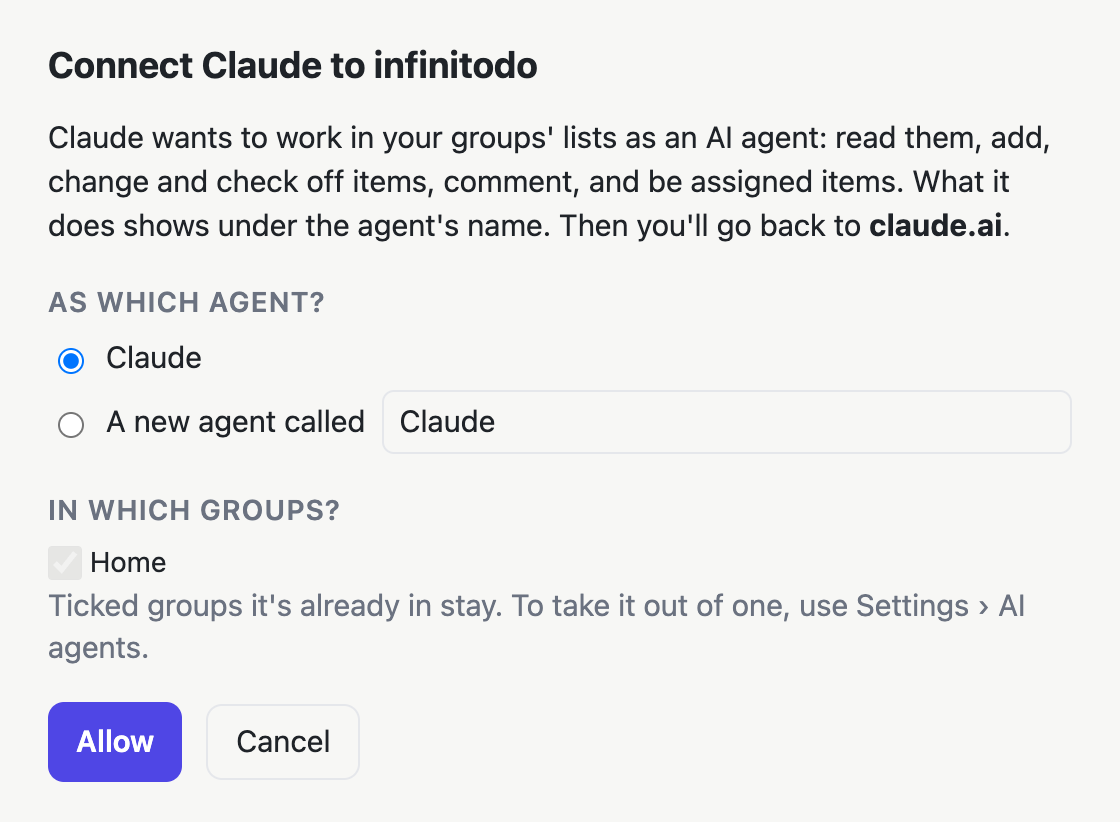
In the Claude app (claude.ai, desktop or
mobile): add a custom connector (in Claude's settings, under
Connectors) with the URL https://infinitodo.com/mcp.
Claude sends you here to sign in; pick an agent (or make a new
one) and the groups it's in, and click Allow.
No token needed. The AI agents page then shows the connection,
with Disconnect to end it.
Claude Code: sign in the same way (run
claude mcp add --transport http infinitodo https://infinitodo.com/mcp,
then /mcp in Claude Code), or use the agent's token.
Make the agent here and run the command shown with it. It looks like
this (add --scope user to have it in every project):
claude mcp add --transport http infinitodo https://infinitodo.com/mcp \
  --header "Authorization: Bearer itd_…"
Then just ask, e.g. “What's on the Home list?”, “Add a packing
list under Weekend trip, due Friday” or “Check off the groceries
we bought”. Other MCP clients (the Claude Agent
SDK, the API, other assistants) connect to the same address,
https://infinitodo.com/mcp, over Streamable HTTP, with the
header Authorization: Bearer and the token, or sign
in with OAuth.
Assigning to an agent: assign items to it with a like anyone else. An agent doesn't act on its own (unless it has an agent runner): next time you use it, ask it to “work on what's assigned to you in infinitodo”. It can check things off, comment on what it did, ask a question in a comment, or reply to yours.
On the AI agents page, each agent has New token, which stops the old one working, and Delete, which takes it out of all your groups and stops its token. Untick a group (or use Remove in the group's members) to take it out of just that group. Either way, what it was assigned there is unassigned, and the history keeps its name. While a group is read-only, its agents can read the list but not change it.
The agent runner: agents that get to work by themselves Beta
Premium: the agent runner works for one of your AI agents, and agents work in group lists, which need Premium.
The agent runner is a small app for your Mac, Windows or Linux computer. It works on the items assigned to one of your agents as soon as they're assigned: it reads the item, does the work, comments on what it did and checks it off, or asks a question in a comment and carries on when someone answers. @mention the agent in a comment and it answers.
It works with the AI you choose:
- AI companies: Claude, ChatGPT (OpenAI), Gemini, Grok, Mistral, DeepSeek, Groq or OpenRouter, with your own key from them.
- Open models on your own computer: Ollama, LM Studio, or any server that speaks the OpenAI API. Pick a model that can use tools.
- Coding agents you've installed: Claude Code, Codex (beta) or OpenCode (beta), to work on files.
To install it, follow the steps for your computer (macOS, Windows or Linux) on the Downloads page: one command to paste.
It runs in the background from then on, starting when you log in, and opens its page in your browser to set it up:
- Connect to infinitodo: sign in, and pick the agent (or make one) and its groups. Nothing to copy or paste.
- Choose its AI: click one, paste its key if it needs one (AIs already on your computer are found by themselves), and pick a model.
- A folder (optional): where it may read and write files. Coding agents need one.
The same page then shows whether it's online, what it's working
on (with Stop and Try again), and
what it's done. To open it again, click its icon in the menu bar
(Mac) or by the clock (Windows, Linux) and choose
Open the setup page. The icon also shows what it's
doing, and can pause it or quit it until you next log in. To
start it again before then, run infinitodo-agent open
in the Terminal (PowerShell on Windows): it starts it and opens
its page.
While it works, the item shows “Claude is working on this…” for everyone in the group, and AI agents in your settings shows the runner is online, on which computer and with which AI. The whole conversation stays in the item's comments, so you can switch AIs at any time. Unassign the item, or check it off, and it stops.
Your keys and its sign-in stay on your computer, readable only by you. Its page only opens on your computer.
Removing it: click Uninstall… at the bottom of its page (on Windows, you can also remove it in Settings › Apps › Installed apps). It stops, won't start when you log in, disconnects from infinitodo, and its settings, keys included, and the app itself are deleted. The items it worked on stay as they are.
The API
With Premium, connect infinitodo to Zapier, Make, n8n, Home Assistant or your own scripts: make a token in Settings › API (one that only reads, or reads and changes), and they can read your lists and add, change, check off and comment on items, as you. How it works, with examples: the API.
Playbooks
A playbook is a saved set of items you use again and again: packing for a trip, a weekly reset, onboarding someone new. Inserting one copies its items into a list, unchecked.
Making one
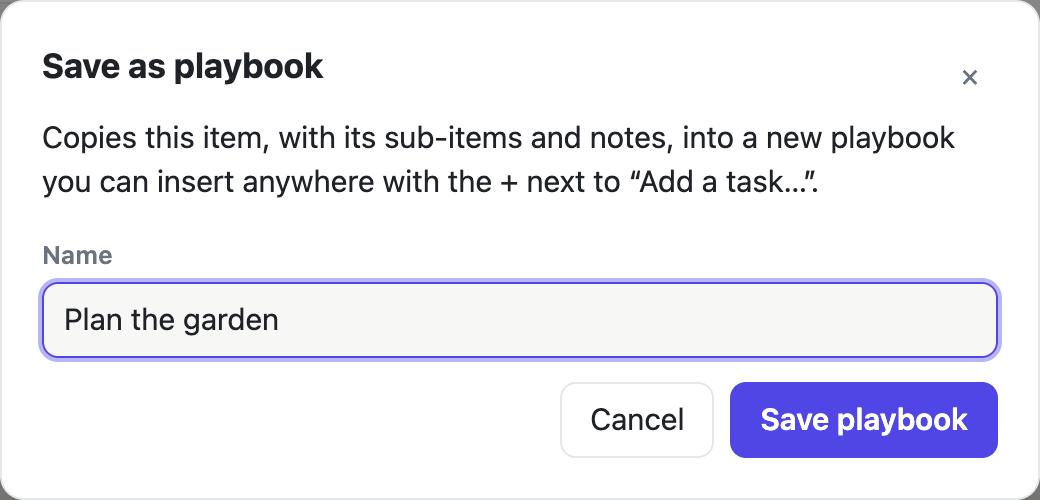
- Right-click an item and choose Save as playbook… (or press w). It's copied, with its sub-items, notes and due dates. In a group's list you choose whether it's yours or the group's.
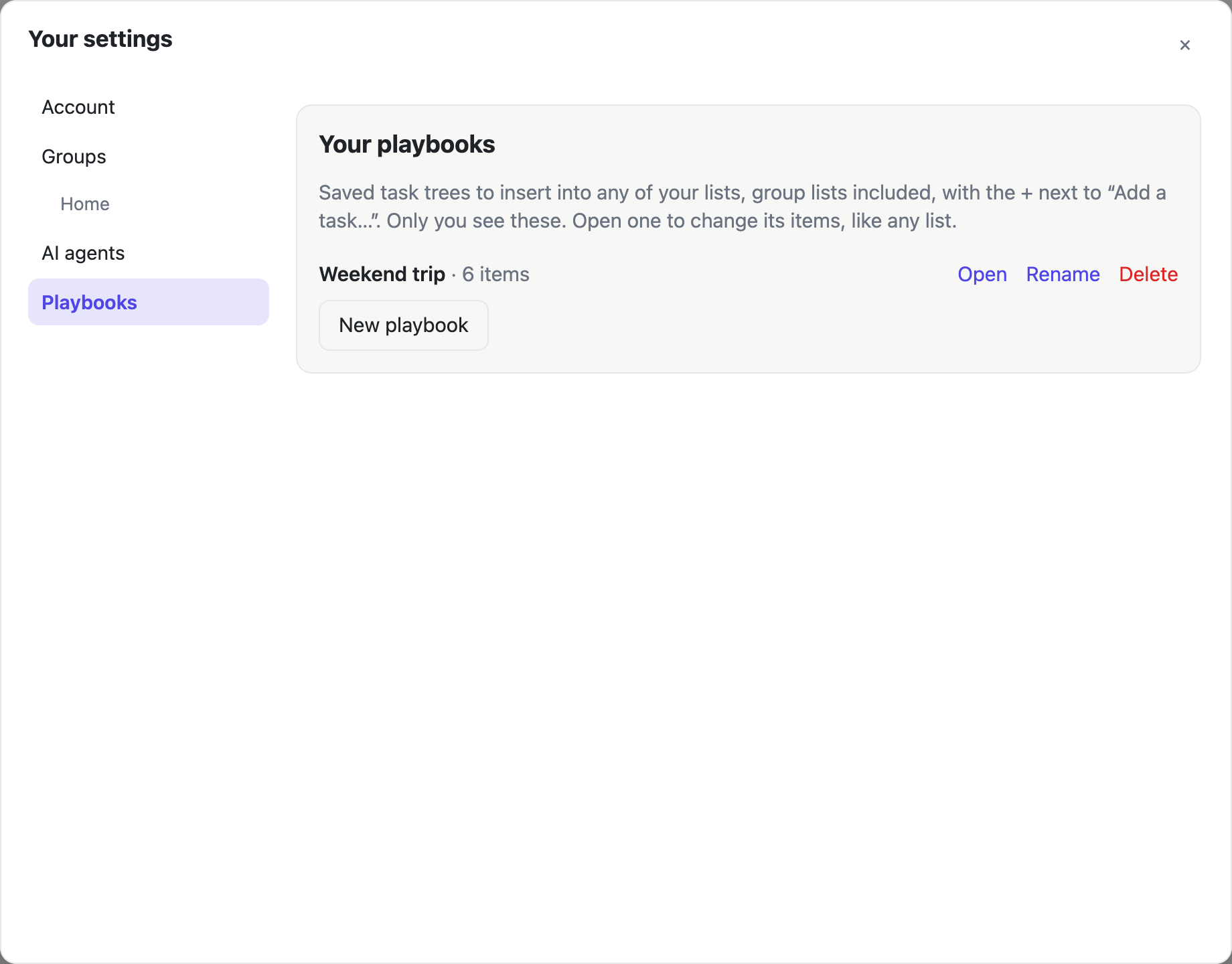
- Or start one in Settings → Playbooks with New playbook.
Editing one
A playbook opens as a list on the right, and works like any other list: add, nest, move, paste, check off, write notes. (No assigning or comments: those are for group lists.)
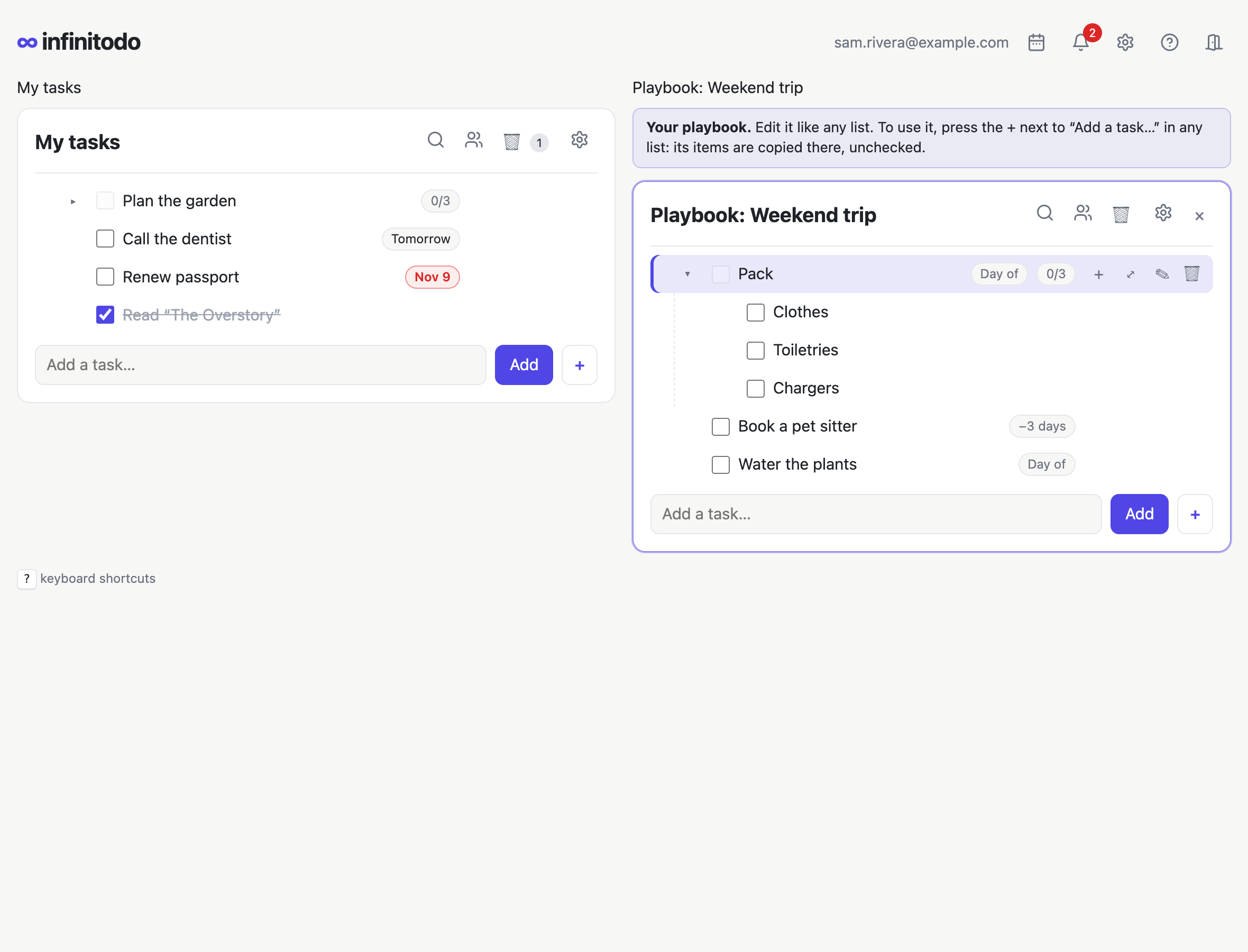
In a playbook, a due date is a number of days after it's inserted. Type “Pack in 2 days” in a playbook, or set the number in an item's info.
Using one
Press the + next to Add (or +) in any list, and choose Insert. Its items go at the end of that list, unchecked, with their due dates counted from today. Edit opens the playbook instead.
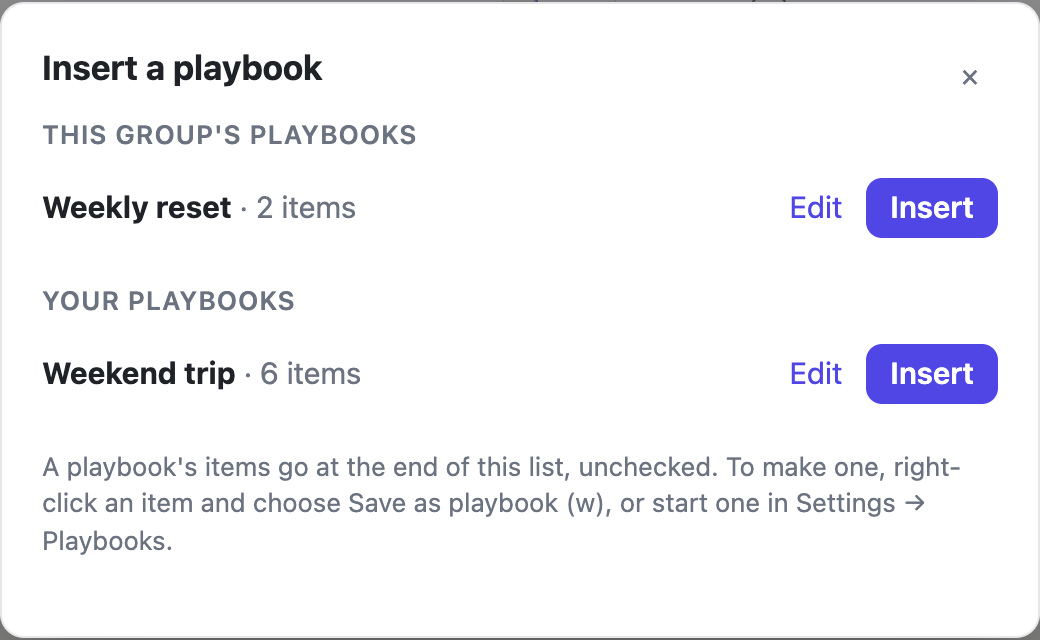
Yours, and a group's
Your playbooks are only yours, and you can insert them into any list, group lists included. A group's playbooks are for everyone in it, and anyone in the group can change them. Manage yours under Settings → Playbooks, and a group's on its page under Settings → Groups (or in its list's settings). Rename or delete them there; deleting one deletes its items.
List settings and the audit log
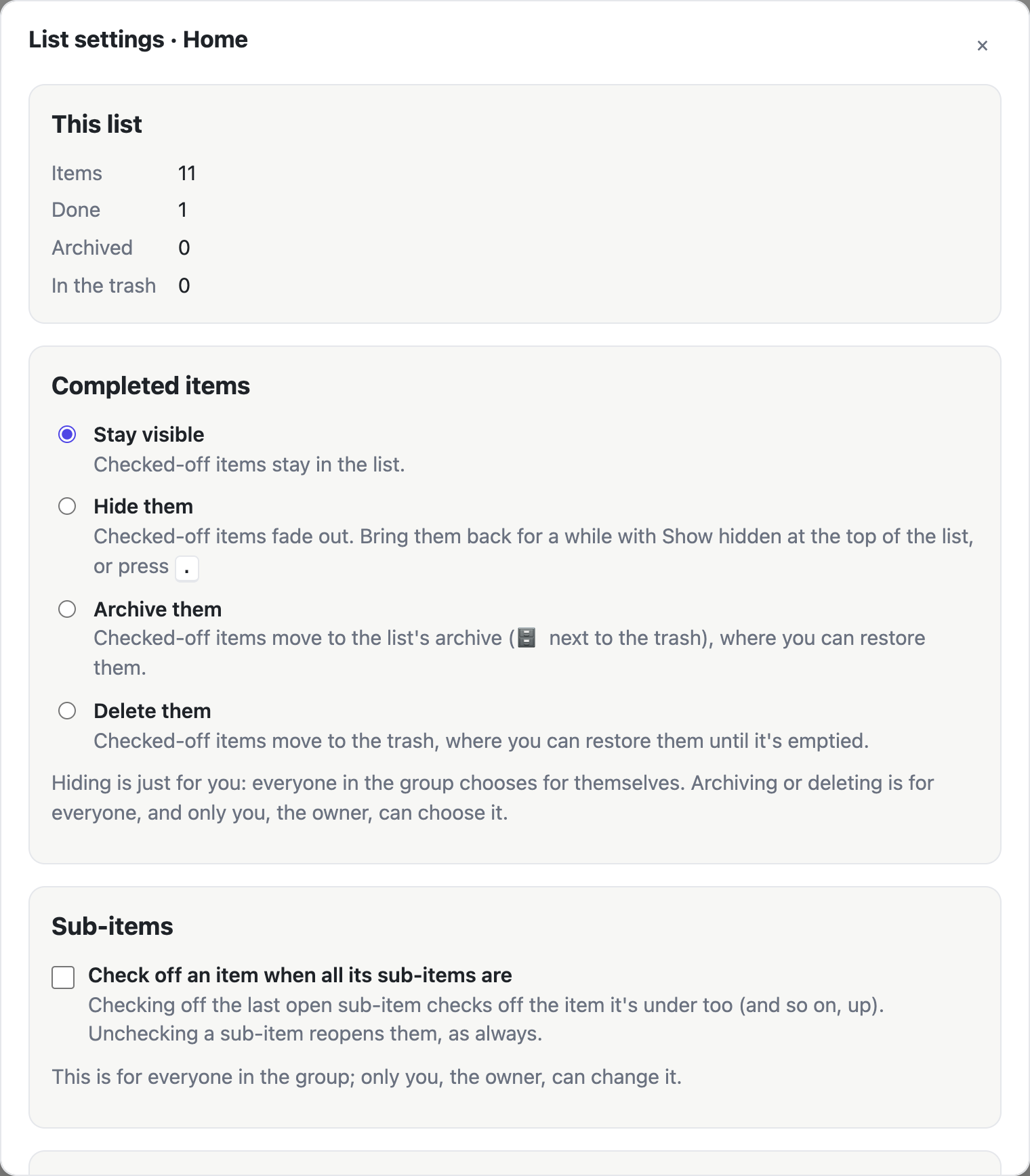
Each list has its own settings: the ⚙ at the top of the list, or s. They show how many items it has and how many are done, and let you choose:
- Completed items: they stay visible, fade out and hide (press . or Show hidden to see them for a while), move to the archive, or move to the trash. In a group, hiding is each person's choice; archiving or deleting is for everyone, and only the owner chooses it.
- Sub-items: check off an item by itself when all its sub-items are. Checking off the last one checks off the item it's under too, and so on up; the history says why. In a group, only the owner chooses it, for everyone.
- New items (group lists): who items added to the list start out assigned to, or nobody (the default). It applies to items added by anyone, sub-items too, and through agents and the API; each one can still be reassigned. Only the owner chooses it, for everyone; if that person leaves the group, it goes back to nobody.
- Order: as you arranged it, or by due date (soonest first, then items without one). Just for you.
- In a group's list, the group's settings and its playbooks.
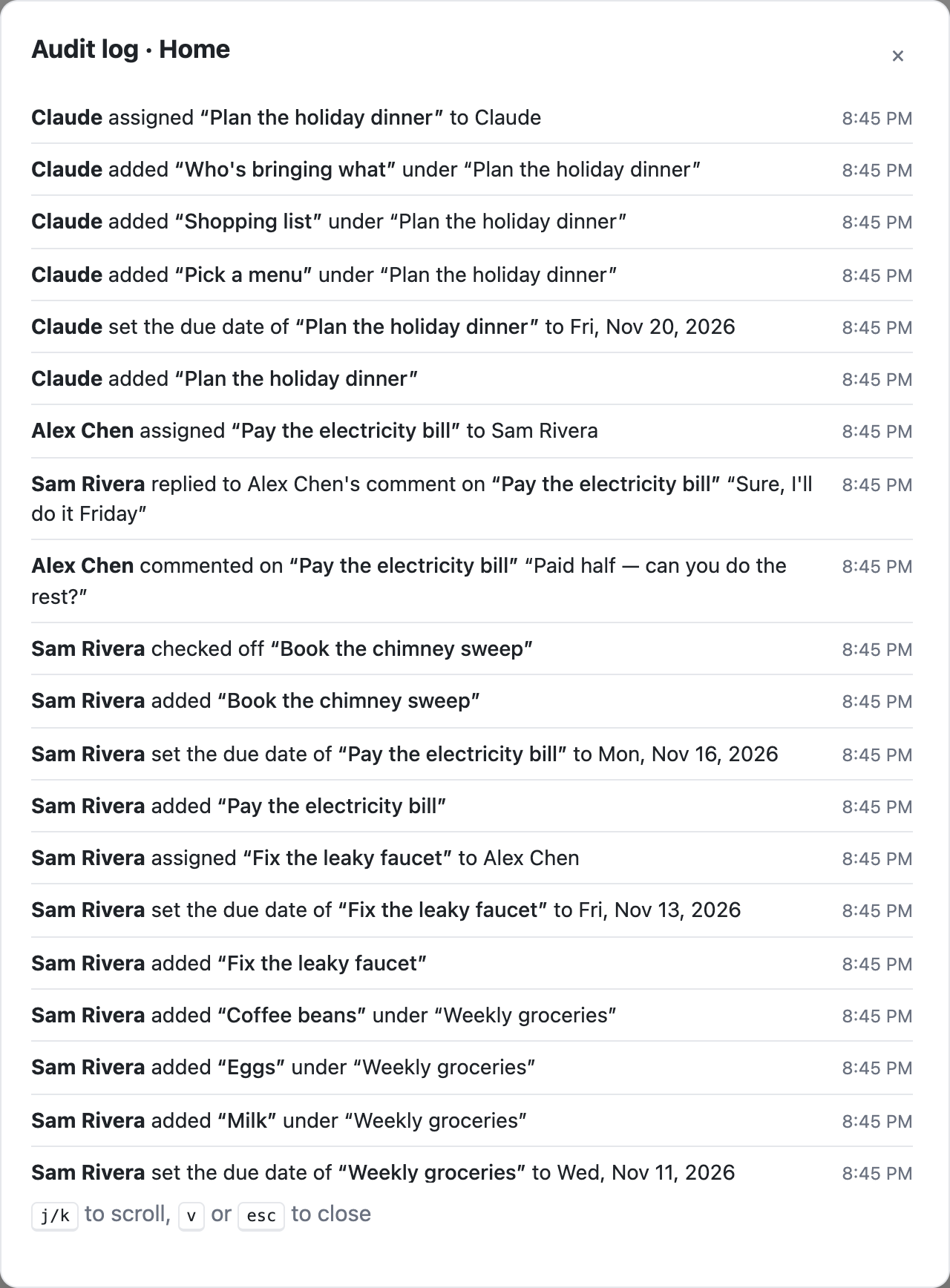
The audit log
Press v for every change to the list you're in, newest first: who added, renamed, moved, checked off or deleted what, and when. j/k scroll it.
Your settings
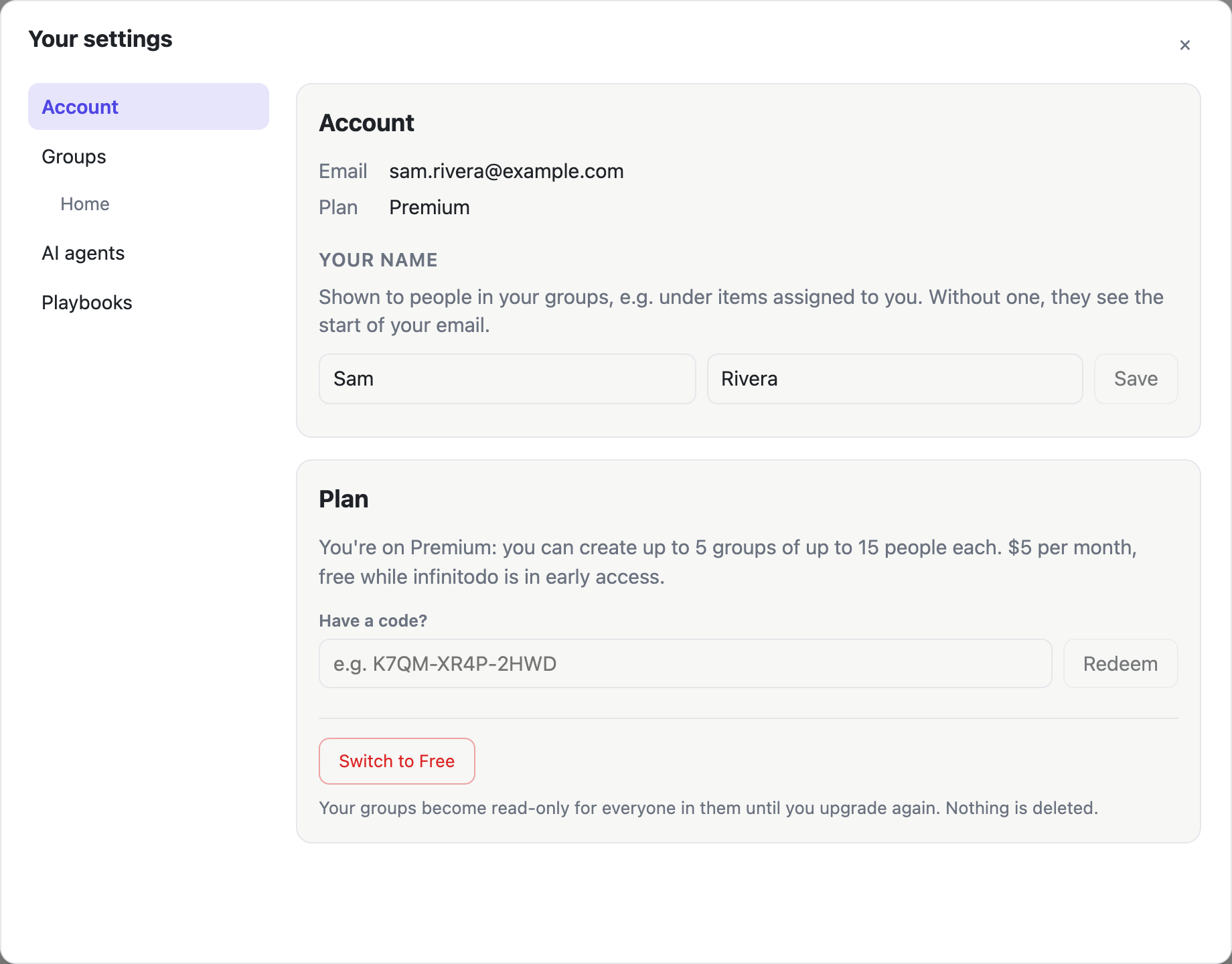
The gear at the top (or S) opens your settings, with a sidebar:
- Account: your email and plan, and your name. Your name is what people in your groups see (e.g. under items assigned to you); without one they see the start of your email. Also the Layout: your list and a group's side by side, or one at a time.
- Groups: invitations waiting for you, the groups you own (and creating one), and the groups you're in (where you can leave one). Each group has its own page underneath.
- AI agents: your AI agents (see AI agents).
- Playbooks: your playbooks.
- Repeating: your list's repeating items and scheduled playbooks (see Repeating items).
- Notifications: email and push notifications (below).
- Import & export: bringing your lists in from another app, and taking them out (below).
Email and push notifications
Besides the bell, infinitodo can tell you things by email and by push notification (on your phone or computer, even when it isn't open). In your settings, Notifications, choose each for two kinds:
- Reminders: what's due, each morning (from 8:00 your time), and items due at a time, at that time.
- Activity: when you're assigned something, comments and replies to you, and changes others make to items you follow.
Everything starts off. Emails go to your account's email address, as one email at most every 10 minutes, so a burst of changes is a single email; each has a link to stop them.
Push notifications are turned on per device: on each phone or computer, open your settings there and click Turn on notifications here (your browser asks to allow them). Send a test checks it works. On iPhone and iPad, add infinitodo to your home screen first (see Add it to your home screen) and turn them on from there. Clicking a notification opens the item. Your devices are listed, to remove any you no longer use.
Import and export
Moving from another app? In your settings, Import & export, choose a file:
- Todoist: in a project's menu, Export as a template › Export as file (CSV). Sections become items with their tasks under them, sub-tasks stay sub-tasks, descriptions and comments become notes, and dates like “every mon” or “Nov 20 3pm” become due dates and repeats.
- Workflowy: Export › OPML (or plain text). Notes and what's completed come along.
- Any outliner's OPML, a Markdown checklist (
- [ ] item), or an infinitodo export. - Or paste an indented list: each line an item, indented under the one it belongs to; dates at the end (“Call mom tomorrow 3pm”) work as they do when you add an item.
You see how many items it found before importing. Choose the list to put them in, whether to bring the checked-off ones too, and whether to put everything under a new item (“Imported from Todoist”). It's one change: z takes it all back out.
To take a list out, pick it under Export and a format: JSON keeps everything, OPML opens in outliners like Workflowy, CSV in a spreadsheet, Markdown as a readable checklist. Download everything saves your list, your groups' lists and your playbooks as one JSON file.
Two-step sign-in, and where you're signed in
In Settings › Account › Sign-in and security, turn on two-step sign-in: scan the QR code with an authenticator app (Google Authenticator, 1Password, Authy, Microsoft Authenticator…) and type the code it shows. From then on, signing in asks for a code from the app after your password, so your password alone isn't enough. You also get 10 recovery codes: each signs you in once when your phone isn't at hand, so keep them somewhere safe. Making new ones, or turning two-step sign-in off, asks for your password.
The same section lists the browsers you're signed in on, with when each was last used: Sign out any of them, or all but the one you're using. Too many wrong passwords or codes in a row make you wait a few minutes before trying again.
Deleting your account
At the bottom of Account in your settings, type your password and the word DELETE, and click Delete my account. It's for good: your own list, your playbooks, your AI agents and the groups only you are in go, history and all. In groups other people are in, what you added and your comments stay, shown as by “a former member”, and what was assigned to you is unassigned. A confirmation email follows. Download everything first if you want a copy.
If you own a group with other people in it, remove them and delete the group first; the page lists which.
On your desktop Beta
On a Mac with Apple silicon, the infinitodo desktop app (in beta, installed with Homebrew) puts infinitodo in a window of its own, always the current version, plus:
- ⌘⇧Space in any app brings it to the front, ready to type a new item.
- An ∞ in the menu bar: open it, add an item, start it when you log in, or quit. Closing the window keeps it running there.
- Desktop notifications for what's new in the bell, while it isn't the window in front.
-
infinitodo://item/HOME1-00002Alinks open that item in the app.
On your phone
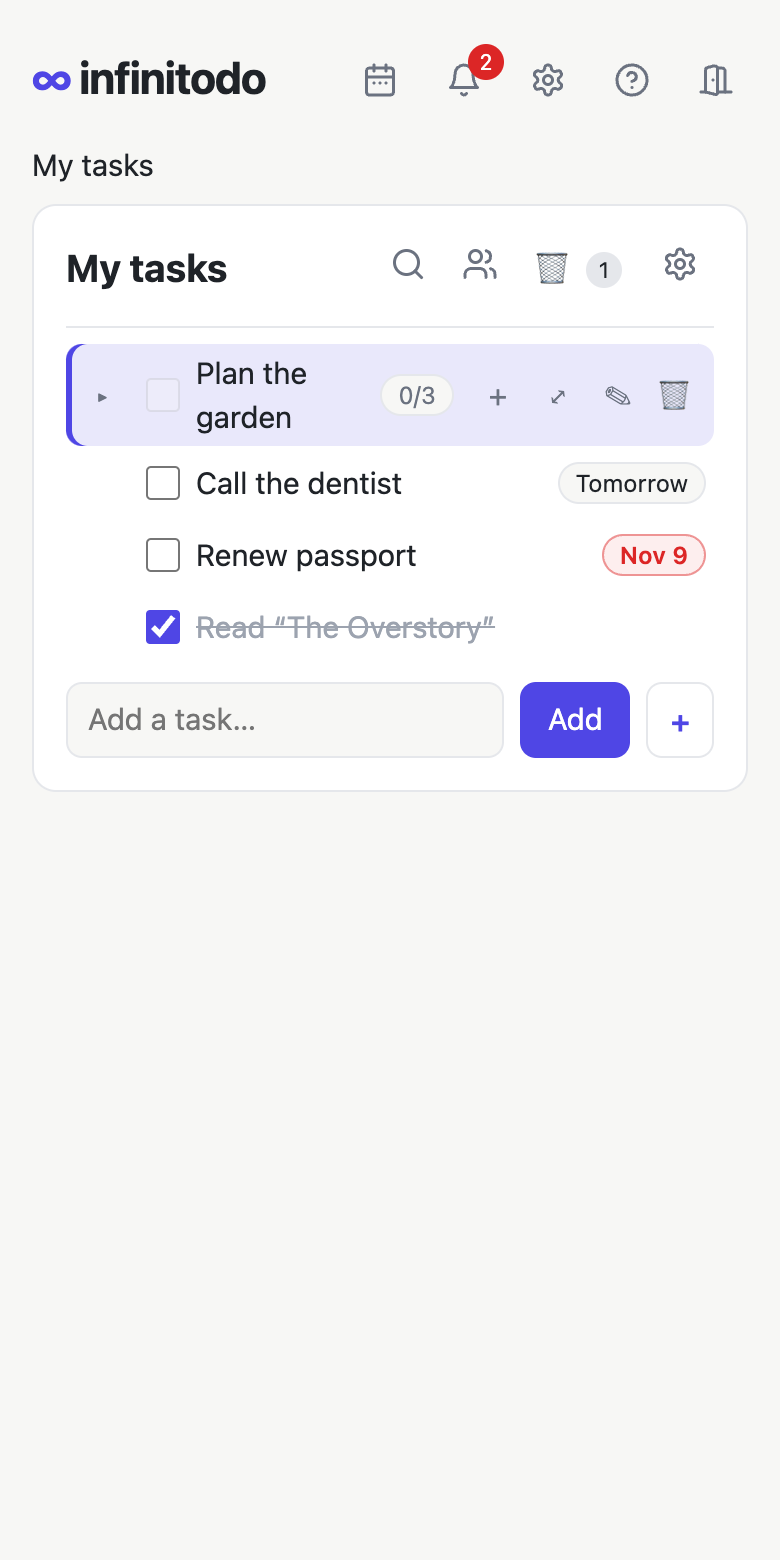
infinitodo works in your phone's browser. Tap an item to select it and show its buttons (+ for a sub-item, ⤢ to focus, ✎ for its info, 🗑 to delete). Settings show their pages as tabs across the top.
Add it to your home screen
infinitodo can be installed like an app, with its own icon, opening in its own window without the browser's bars:
- iPhone and iPad (Safari): tap Share, then Add to Home Screen.
- Android (Chrome): tap ⋮, then Install app (or Add to Home screen).
- Computer (Chrome, Edge): click the install icon at the right of the address bar, or ⋮ › Install infinitodo.
Without a connection
infinitodo keeps itself and the lists you last opened on your device, so it still opens without a connection: on a plane, on the subway. A notice at the top says you're offline.
You can keep working: add items, check them off, rename them, move them, delete them, and change due dates, repeats and notes. Each change shows straight away with ⏳, and the bottom of the page counts how many are waiting. They're kept on this device (even if you close the app) and saved by themselves, in order, as soon as you're back online. z takes back the last one while you're still offline. A few things need a connection: sending items to another list, copying and pasting, playbooks, comments, assigning, and undoing changes made while online.
Lists can change while you're away, in a group or on your other devices. When your changes are saved:
- A change to an item that's been deleted meanwhile is skipped.
- Something added under (or moved into) an item that's gone goes at the top level instead.
- If you renamed something, or changed its due date, and it had been changed meanwhile, your change still goes in, and you're told.
- If you edited notes that someone else also changed, theirs stay: yours are added as a comment (in your own list, after theirs), so nothing is lost.
Anything that wasn't saved, or was saved with a note, is listed at the bottom of the page under Changes made offline, with Try again, Copy the text and Discard.
Logging out forgets what was kept, so the next person on that device doesn't see your lists. If you have changes that haven't been saved yet, you're asked first.
Keyboard shortcuts
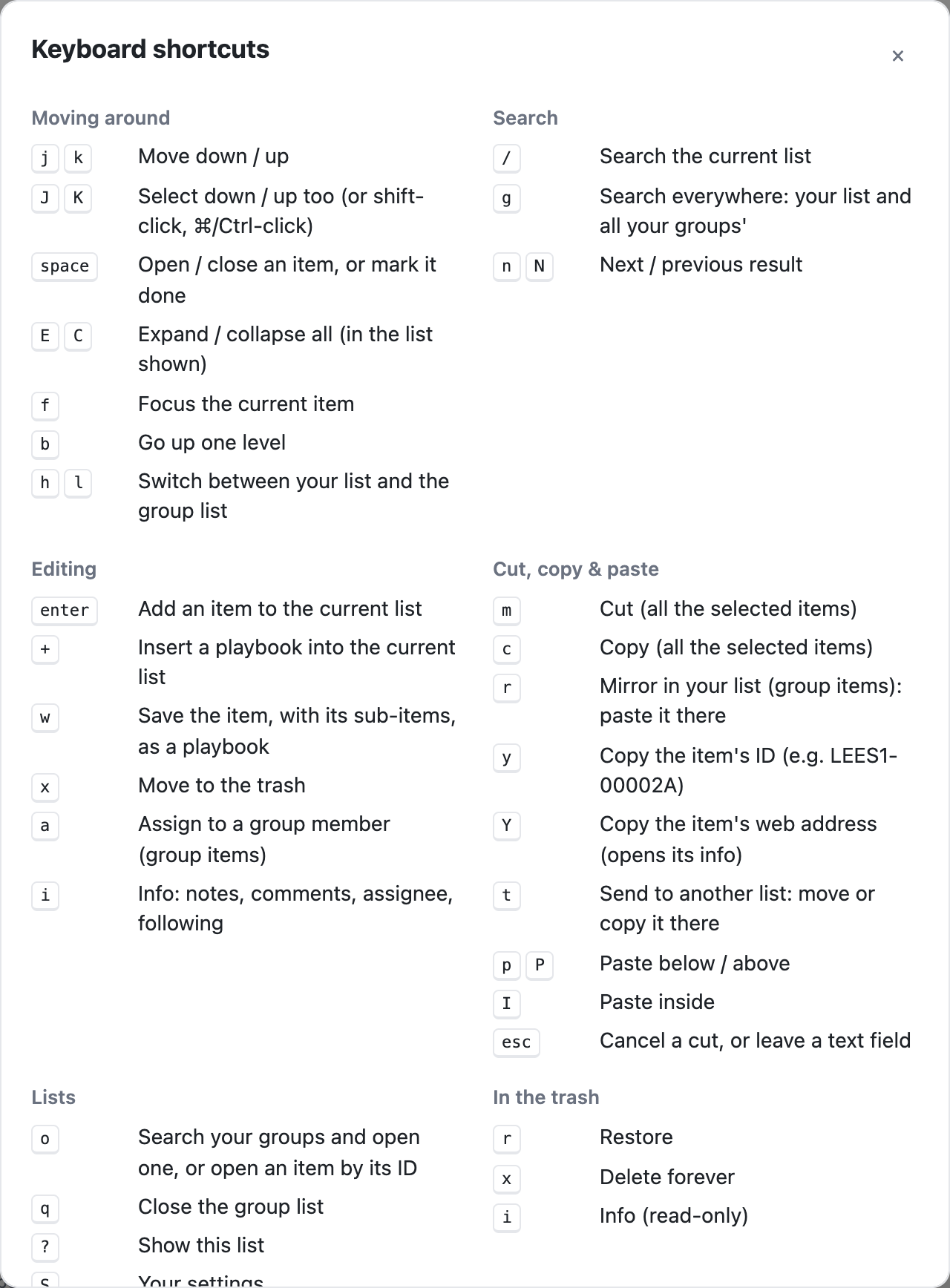
Shortcuts work whenever you're not typing in a box. Press ? in the app to see them.
| Keys | Moving around |
|---|---|
| j k | Move down / up |
| J K | Select down / up as well (or shift-click, ⌘/Ctrl-click), for m c x to act on them all |
| space | Open / close an item, or check it off |
| E C | Expand / collapse all (in the list shown) |
| f | Focus on the selected item |
| b | Go up one level |
| h l | Switch between your list and the group list |
| Keys | Search |
|---|---|
| / | Search the current list |
| g | Search everywhere: your list and all your groups' |
| n N | Next / previous result |
| Keys | Editing |
|---|---|
| enter | Add an item to the end of the current list |
| i | Add an item just below the current one |
| I | Add a sub-item inside the current one (or paste inside, with something cut or copied) |
| > < | Indent under the item above / outdent out of its parent |
| + | Insert a playbook into the current list |
| w | Save the item, with its sub-items, as a playbook |
| x | Move to the trash |
| e | Archive (with its sub-items, done or not) |
| z, Ctrl/⌘+Z | Undo your last change |
| a | Assign to a group member (group items) |
| d | Details (info): notes, due date, comments, assignee, following |
| Keys | Cut, copy & paste |
|---|---|
| m | Cut (all the selected items) |
| c | Copy (all the selected items) |
| r | Mirror in your list (group items): paste it there |
| y | Copy the item's ID |
| Y | Copy the item's web address (it opens the item's info) |
| t | Send to another list: move or copy it to the end of it |
| p P | Paste below / above |
| I | Paste inside (while something's cut or copied) |
| esc | Cancel a cut, or leave a text box |
| Keys | Lists |
|---|---|
| o | Open a group list, or an item by its ID |
| q | Close the group list |
| u | Upcoming: everything due, across your lists |
| # | Tags: tagged items across your lists, and saved filters |
| v | Audit log of the current list |
| . | Show / hide completed items (in lists that hide them) |
| s | This list's settings |
| S | Your settings |
| ? | Keyboard shortcuts |
| Keys | In the trash and the archive |
|---|---|
| r | Restore to the list |
| x | Delete forever (in the trash), or move to the trash (in the archive) |
| d | Details (info): notes, comments, due date (read-only) |